# Agents and tools
Source: https://docs.anara.com/chat/chat-agents
Anara offers specialized AI agents and tools to help with different aspects of your research workflow. Simply type @ in any chat to access these capabilities.
## What's the difference?
**Agents** work through multiple steps to complete complex tasks. They can break down your request, gather information from various sources, and synthesize results.
**Tools** provide quick, single-action results for specific needs like searching or creating content.
## How to use agents and tools
Here's how to use agents and tools in Anara:
1. Type @ in any chat to see the full list of available options
2. Select the agent or tool that best matches your current task
3. Provide specific instructions about what you need
You can combine multiple agents and tools in a single conversation to tackle complex research tasks. For example, use @Research to find information, then @Create Flashcards to turn that information into study materials.
## Agents
Agents work through multiple steps to handle complex tasks:
* `@ Research` Ask complex questions to get a comprehensive, synthesized answer drawn from your library, the web, and millions of academic papers.
* `@ Complete Form` Provide a template or a list of questions and this agent will systematically find the answers and organize them into a final, structured response.
## Tools
Tools provide quick, focused actions:
### Search Tools
* `@ Search Workspace` Instantly find any piece of information across all of the files and notes saved in your library.
* `@ Search Web` Find accurate, up-to-date answers to any question using information from the internet.
* `@ Search Papers` Search millions of papers from major academic databases like PubMed, arXiv and JSTOR.
* `@ Search YouTube` Find relevant YouTube videos and quickly extract and apply information from them.
### Connector Search Tools
Search your connected external libraries directly from chat:
* `@ SearchZotero` Search your connected Zotero library for research papers and references.
* `@ SearchMendeley` Search your connected Mendeley library for academic content.
* `@ SearchOneDrive` Search files stored in your connected OneDrive account.
* `@ SearchSharePoint` Search documents in your connected SharePoint sites.
### Creation Tools
* `@ Create Citation` Point to a file (or a group of files), and this tool will instantly generate properly formatted academic citations in your preferred citation style.
* `@ Create Flashcards` Turn notes, documents, or YouTube videos into a set of flashcards and multiple-choice questions.
* `@ Create Image` Generate custom images based on your descriptions to enhance your notes and documents.
# Overview
Source: https://docs.anara.com/chat/chat-overview
Chat is your place to get answers from both the web and the files in your library. Anara offers two types of chat experiences.
When you start a chat from the home page, Anara provides intelligent responses by searching through academic databases, your personal library, and web sources to deliver comprehensive, research-backed answers to your questions. You can control this with the [Context settings](/chat/chat-settings#context-settings) in the settings menu inside the input.
When chatting directly with files or folders, Anara focuses specifically on the content you're viewing, allowing for detailed questions about your research materials.
# Chat settings
Source: https://docs.anara.com/chat/chat-settings
### Context settings
Anara gives you complete control over which information sources are used in responses. Use the toggles in chat settings to customize your sources:
* Library: Include files from your personal workspace
* Web: Allow searches across academic databases and internet sources
* Model knowledge: Access the AI's built-in information
When chatting with specific files or folders, these context settings are unavailable. In these cases, Anara will always use information from the selected files or folders to generate responses.
### Response length
Adjust how detailed Anara's answers are by using the length setting. Choose preset lengths from 50-500 words, select "No limit" for unrestricted responses, or use the default 250-word length (maximum for free users).
For custom word counts beyond preset options, select "No limit" and specify your desired length in your prompt (e.g., "Please respond in 800 words").
Note: Actual response lengths may vary by approximately 20% to ensure quality and completeness.
### Language settings
Anara supports over 90 languages including French, Spanish, German, Hindi, and Chinese. You can change your preferred language in either the chat settings menu or your account settings.
Note: While our models support over 90 languages, our interface is currently only available in English.
# Chat with files
Source: https://docs.anara.com/chat/chat-with-files
Anara provides a powerful AI assistant for every file you import, allowing you to have intelligent conversations about documents, images, audio, and video content. Instead of manually searching through files, you can simply ask questions and get precise answers with citations.
## How to chat with a file
When you open any file in Anara, you'll find a dedicated chat interface ready to answer questions specifically about that file's content. The AI assistant has full context of all information contained in the file, including:
* Text content from PDFs and documents
* Visual information from images and diagrams
* Transcribed content from audio and video files
* Tables, charts, and other structured data
## What you can do
### Ask specific questions
Get direct answers to specific questions about your file:
* "What are the main findings in this study?"
* "Summarize the methodology section"
* "What data supports the conclusion?"
### Get summaries
Request quick overviews of any length:
* "Give me a 3-sentence summary of this paper"
* "What are the key takeaways from this presentation?"
* "Summarize this video in bullet points"
### Find information
Locate specific information without manual searching:
* "Where does the author discuss climate change?"
* "What page mentions the research methodology?"
* "Find all references to machine learning"
### Understand complex topics
Break down difficult concepts into clear explanations:
* "Explain this statistical analysis in simple terms"
* "What does this diagram show?"
* "Help me understand the author's argument"
## Citations
Every response from the AI assistant includes citations that link directly to the source location in your file. Click on any citation to jump to the exact page, timestamp, or section where the information was found. This makes it easy to verify information and dive deeper into the source material.
## Tips for effective file chat
* **Be specific**: Ask focused questions for more precise answers
* **Use follow-ups**: Continue the conversation to dig deeper into topics
* **Request formatting**: Ask for bullet points, numbered lists, or tables to organize information
* **Combine questions**: Ask multiple related questions to get comprehensive answers
# Chat with folders
Source: https://docs.anara.com/chat/chat-with-folders
You can add multiple files into one AI assistant for quick cross-referencing and search. When you ask a question from a folder, Anara responds based on all content found in the folder, drawing insights from every included file.
## How to create folders
There are two ways to create folders in Anara:
1. Click the + icon in the left sidebar, select "New folder" under the Create dropdown, and drag items into the folder, or
2. Select multiple items from the table and click "Add to folder".
## Subfolders
A powerful feature in Anara is the ability to nest folders within other folders, creating a hierarchical organization. Each nested folder has its own AI assistant that responds based on the files within that specific folder, while parent folder assistants can access files across their entire hierarchy.
When chatting with a folder, you can switch between table (default) and tab view. Table View displays all your documents and metadata at a glance, while Tabs View lets you open and compare papers side by side. If you click on a citation in a response, Anara will automatically switch to Tabs View and navigate to the relevant section in the source file.
# Citations
Source: https://docs.anara.com/chat/citations
Each response includes citations and links to original sources, enabling you to verify accuracy, and ensure academic integrity throughout your research process. When hovering over citations, you'll see an explanation of why the citation is relevant, along with supporting quotes from the source document.
# Edit sent messages
Source: https://docs.anara.com/chat/edit-sent-messages
You can edit a previously sent message in chat to tweak the prompt slightly for a better response. Simply click on the previously sent message to edit. Note that when you edit a message, all subsequent messages in the conversation will be overwritten.
# Overview
Source: https://docs.anara.com/chrome-extension/chrome-overview
The [Anara Web Clipper](https://anr.to/chrome-docs) Chrome extension lets you effortlessly save PDFs, webpages, and YouTube videos directly into your Anara library with just one click—no downloads necessary.
**Getting Started:**
1. Install the Anara Web Clipper extension from the [Chrome Web Store](https://anr.to/chrome-docs).
2. Pin it to your browser toolbar for quick access.
3. Whenever you find a useful PDF, webpage, or YouTube video, click the Anara icon and select "Add to Library."
Ideal for researchers, academics, and knowledge professionals who want an easy way to collect and organize important online content seamlessly.
Start simplifying your research workflow today with Anara.
# Sharing chats
Source: https://docs.anara.com/collaboration/chat-sharing
Share your Anara chats with others through shareable links
## Overview
Anara allows you to share your chat conversations with others through shareable links. This feature is perfect for collaborating with colleagues, sharing research findings, or documenting important discussions.
## Creating a share link
To create a share link for your chat:
1. Click the **"Share"** button at the top of any chat
2. Click **"Publish"** to generate a share link
3. The link is automatically copied to your clipboard
People visiting your share link will be able to see all messages sent before you created the link.
### Updating shared chats
If you continue the conversation after creating a share link and want to include the new messages:
1. Open the share menu again
2. Click **"Republish"** to update the link with the latest messages
## Receiving a share link
When someone shares a chat link with you:
* You can view the entire conversation history
* You can see any associated files that were part of the chat
* You have the option to continue the conversation
If you choose to continue a shared conversation, the file and message history will be added to your personal library.
## Best practices
* Review your chat content before sharing to ensure no sensitive information is included
* Use descriptive messages in your chats to provide context for recipients
* Republish links after important updates to keep shared content current
# Creating and switching workspaces
Source: https://docs.anara.com/collaboration/creating-workspaces
When you sign up for Anara, you automatically get a workspace to start organizing your research. This default workspace is perfect for most users, but you can create additional workspaces as your needs grow.
## Creating a new workspace
To create a new workspace:
1. Click on your workspace name (dropdown arrow) in the top left
2. You'll see your current workspace with a checkmark
3. Click **+ New workspace**
4. Enter a name for your new workspace
5. Click **Create**
Your new workspace will be created with:
* An empty library ready for folders and content
* You as the sole owner
## Switching between workspaces
To switch between workspaces:
1. Click on your workspace name (dropdown arrow) in the top left
2. Hover **Switch workspace**
3. Your current workspace shows with a checkmark
4. Click on any other workspace name to switch instantly
## Workspace vs. Folder organization
**Use workspaces when you need:**
* Complete separation of content and members
* Different billing or plan requirements
* Distinct organizational boundaries
* Clear client or project isolation
**Use folders when you need:**
* Organization within the same team or project
* Flexible sharing with different subsets of people
* Quick reorganization of content
* Granular access control within a workspace
# Sharing folders
Source: https://docs.anara.com/collaboration/folder-sharing
## Overview
Anara's folder sharing system allows you to organize and share content with precise control over who can access what. Within each workspace, you can create folders with different visibility levels to collaborate effectively while maintaining privacy where needed.
## Folder visibility levels
Every folder in Anara has one of three visibility levels:
### Private folders
* Visible only to you
* Perfect for personal research, drafts, or sensitive content
* Cannot be accessed by other workspace members
### Shared folders
* Visible to specific people you've explicitly shared them with
* Ideal for collaborative projects with select team members
### Team folders
* Visible to everyone in the workspace
* Best for content that all workspace members should access
* Automatically accessible to new members when they join
## Creating and sharing folders
### Creating a new folder
1. Click the **"+"** button next to **Folders** in the sidebar
2. Name your folder
3. Choose the visibility level:
* **Private** - Only you can see this folder
* **Shared** - You'll choose who to share with
* **Team** - All workspace members can access
# Managing members
Source: https://docs.anara.com/collaboration/managing-members
Control who has access to your workspace and manage their permissions. Only workspace owners can manage members.
## Member roles
Anara workspaces support two types of members:
### Owners
* Can invite and remove members
* Can change workspace settings
* Can delete the workspace
* Have access to team folders in the workspace
### Members
* Can access team folders in the workspace
* Can invite new members
* Cannot change workspace settings
* Cannot delete the workspace
Free users can only add other users as owners. The member role is available only on paid plans.
## Adding members
There are two ways to add members to your workspace:
### Method 1: Direct invitation
1. Go to **Settings** → **Members**
2. Click **Add members**
3. Enter email addresses (separated by commas for multiple invites)
4. Select the role (Owner or Member)
5. Click **Send invite**
Invited users will receive an email with instructions to join your workspace. For paid workspaces, you'll be billed for each member added.
### Method 2: Share invite link
1. Go to **Settings** → **Members**
2. Click **Copy link**
3. Share this link with people you want to invite
4. They can use the link to request access to your workspace
Only people with permissions to invite members can see and use the invite link feature.
## Removing members
To remove a member from your workspace:
1. Go to **Settings** → **Members**
2. Find the member in the list
3. Click the three-dot menu next to their name
4. Select **Remove from workspace**
When you remove a member:
* They immediately lose access to the workspace and all team folders
* They lose access to any shared folders they were invited to
* Their private folders and content are removed
* Their seat becomes available for reassignment
## Changing member roles
To change a member's role:
1. Go to **Settings** → **Members**
2. Click on the member's current role
3. Select the new role from the dropdown
## Billing and seats
For paid workspaces:
* You're billed per seat
* Adding members increases your monthly cost
* Empty seats remain available until you explicitly remove them in settings
# Workspace settings
Source: https://docs.anara.com/collaboration/workspace-settings
Configure and manage your workspace settings.
## Accessing workspace settings
1. Click on your workspace name in the top navigation
2. Select **Settings**
3. Navigate to the **General** page under **Workspaces**
## General settings
### Workspace name
Change your workspace name to better identify it when switching between multiple workspaces. This name appears in:
* The account dropdown menu
* Email notifications
* Shared links
To change your workspace name:
1. Enter the new name in the **Name** field
2. The change saves automatically
### Workspace icon
Upload a custom icon or logo for your workspace.
* Recommended size: 256x256 pixels
### Allowed domains
Control which email domains can automatically join your workspace when using the invite link feature. This is useful for:
* Company workspaces (e.g., @yourcompany.com)
* Academic institutions (e.g., @university.edu)
* Limiting access to specific organizations
To add allowed domains:
1. Type the domain in the **Allowed domains** field
2. Press Enter to add it
3. Repeat for additional domains
Any email address with these domains can automatically join your workspace when creating an Anara account.
## Billing and plan
View your current plan details and billing information:
* Current plan type
* Number of seats (active and available)
* Next billing date
* Payment method
### Managing seats
To adjust your team seats:
1. Click **Manage seats** in the billing section
2. Use the + and - buttons to increase or decrease seats
3. View the estimated billing for your changes
4. Click **Update seats** to confirm
Adding seats beyond your available quota will automatically charge the workspace owner's payment method.
# Overview
Source: https://docs.anara.com/collaboration/workspaces-overview
Workspaces in Anara help you organize your research, whether you're working alone or collaborating with a team. Each workspace provides a dedicated environment with its own content library, settings, and member access controls. Within workspaces, you organize content using folders with different visibility levels.
## How content is organized
Within each workspace, content is organized using folders that can have different visibility levels:
### Folder visibility types
* **Private folders**: Visible only to you
* **Shared folders**: Visible to specific people you've explicitly shared them with
* **Team folders**: Visible to everyone in the workspace
This folder-based system allows you to organize content by project, area, topic, or any structure that suits your team's needs while controlling who can access what.
### Member management
Workspaces support two roles:
* **Owners**: Have full administrative access, can manage settings, invite members, and delete the workspace
* **Members**: Can access and work with content but cannot change workspace settings or invite new members
### Billing considerations
For paid accounts, billing is per seat. When you add members to a workspace:
* Each member requires a paid seat
* Adding members increases your monthly cost
* Empty seats remain available until explicitly removed
* Free users can only add other users as owners
## Getting started
You can access workspace features through:
* The workspace dropdown (top left) to create new workspaces or switch between them
* Settings to manage members and configure workspace settings
* Folder management within each workspace for content organization
# Overview
Source: https://docs.anara.com/connectors/overview
Connectors let you bring your tools and data directly into Anara. Connect your favorite apps and services to quickly import files without leaving the app.
## Available connectors
Anara currently supports the following connectors:
* **Zotero** - Connect your Zotero library to import research papers and references
* **Mendeley** - Access your Mendeley library for seamless paper management
* **Google Drive** - Import documents and files from your Google Drive
* **OneDrive** - Import documents and files from your Microsoft OneDrive
* **SharePoint** - Connect to SharePoint sites to access team documents
* **Notion** - Import pages and databases from your Notion workspace
## Setting up connectors
To add a connector:
1. Go to Settings in Anara
2. Navigate to the Connectors section
3. Select the service you want to connect
4. Follow the authentication process for that service
5. Once connected, you can access the connector from the sidebar plus (+) menu
## Using connectors
After setting up a connector, you can:
1. Click the + icon in the left sidebar
2. Select your connected service from the import options
3. Browse and select the files you want to import
4. The files will be added directly to your Anara library
## Connector AI search
Anara includes powerful AI search capabilities for your connected apps. You can search your external libraries directly from chat using these specialized search agents:
* `@SearchZotero` - Search your connected Zotero library
* `@SearchMendeley` - Search your connected Mendeley library
* `@SearchOneDrive` - Search files in your OneDrive
* `@SearchSharePoint` - Search documents in your SharePoint
### How connector search works
1. Type @ in any chat to see available search agents
2. Select the search agent for your connected service (e.g., @SearchZotero)
3. Enter your search query
4. The AI will search through your external library and return relevant results
5. You can then import these results directly into your Anara library
Anara periodically checks for updates in your connected libraries to keep search results current, ensuring you always have access to your latest documents and references.
## Benefits of using connectors
* **Seamless workflow** - No need to download and re-upload files
* **Stay synchronized** - Access your latest documents from external libraries
* **Unified search** - Search across all your connected services from within Anara
* **Time-saving** - Import multiple files at once without switching between apps
# Filetypes
Source: https://docs.anara.com/get-started/anara-filetypes
## Documents
Anara supports a wide range of document formats including PDF, DOCX, PPTX, TXT, CSV, XLS, EPUB and more. Documents are fully indexed for searching and can be analyzed by our AI.
## Images
Upload images in common formats (JPG, PNG, GIF, etc.). Our AI can recognize and extract text from images, allowing you to search and reference visual content.
## Audio
Import audio files (MP3, WAV, M4A) to have them automatically transcribed. Great for lectures and interviews.
## Video
Upload video files (MP4, MOV, etc.) to have both audio transcribed and relevant visual information extracted.
## Webpages
Save web pages directly to your library. Anara preserves the content even if the original page changes or goes offline.
## Notes
Create text documents directly in Anara using our rich text editor. Notes support formatting, embedded media, and AI-assisted writing.
## Flashcards
`Generate or create custom flashcard decks for studying. Flashcards are automatically generated from your documents using `@Flashcards` in any chat.`
# Concepts
Source: https://docs.anara.com/get-started/core-concepts
## Workspace
Your workspace is the central environment where all your research activities take place. It contains your library, chats, and all other Anara features you'll use.
## Library
The library is where all your files are stored and organized. You can import documents, create notes, organize content into folders, and easily search through everything.
## Folders
Folders are your top level organizational containers, housing all your research projects or broad subject areas.
## Files
Files are the basic building blocks of content in Anara. They can be imported documents (like PDFs or PowerPoints), media (images, video, audio), or notes you write directly inside Anara. You can find a complete list of supported file types [here](/import/file-types).
## Agent
An AI that can read, write, make decisions and iterate through tasks to complete a specific goal. Find a full list of available agents [here](/chat/chat-agents#available-agents).
## Chat
Interface for AI conversations. Supports multiple tabs, conversation history, editing previously sent messages, and export functionality.
## Query
A request for information sent to Anara. Queries can be simple questions, complex research prompts, or text generations in the [editor](/write/write-overview). They can include context from your files, web searches, or academic databases.
## Context
Information provided to AI models as part of a query. Includes files, symbols, and conversation history.
## Models
Different AI models available for text generation. Each model has different speed and capability characteristics.
## Metadata
Additional information about files shown in the right pane. This includes titles, creators, publishers, dates, page numbers, and any other data needed to cite the item.
## References
Formal academic references to source materials used in your research. Anara supports various citation styles (APA, MLA, Chicago, etc.) and helps maintain proper attribution throughout your work.
## Citations
Numbered citations in AI responses that link directly to source materials. When clicked, citations reveal the exact location of information, allowing you to verify accuracy, and ensure academic integrity throughout your research process.
# Models
Source: https://docs.anara.com/get-started/models
Think of an AI model as a specialized assistant with different strengths. Just like you might choose between different tools for different tasks, you can select different AI models based on what you need:
* **Speed**: How quickly you need a response
* **Intelligence**: How complex or nuanced your task is
* **Specialization**: Whether you need specific capabilities (like handling large documents or mathematical calculations)
Note: Changing models is only available to Plus, Pro, and Enterprise users. Free users have access to GPT OSS model only.
The number and variety of models available depends on your subscription plan. Free users have access to GPT OSS, while Plus and Pro users can access more advanced models with different capabilities and specializations. For detailed information about which models are included in each plan, visit our [pricing page](/pricing).
## Model Capabilities
Each model has different strengths indicated by:
* **Intelligence**: The model's ability to handle complex reasoning and nuanced tasks
* **Speed**: How quickly the model generates responses
* **Provider**: The company that created the model (OpenAI, Google, Anthropic, xAI)
* **Thinking**: Whether the model shows its reasoning process
When in doubt, use Auto Mode (Pro users) or start with a faster model and switch to a more intelligent one if needed.
## Auto Mode
Auto Mode is Anara's intelligent model selection feature that automatically chooses the best model based on your current task.
When you select Auto Mode, Anara considers:
* The complexity of your query
* Whether you're working with files or folders
* The type of task (analysis, writing, math, coding)
* Response time requirements
This takes the guesswork out of model selection and ensures you get optimal results without having to manually switch between models.
## Supported Models
### GPT OSS
OpenAI's lightweight model designed for quick responses and simple queries. While it handles basic questions well, it's best suited for straightforward tasks rather than complex analysis or lengthy documents.
### GPT 5
OpenAI's latest release but not recommended due to ongoing speed issues.
### GPT 4.1
A versatile model that strikes an excellent balance between intelligence and speed. It handles most tasks competently, from analyzing research papers to creative writing, making it a reliable all-purpose choice.
### o3
OpenAI's model specifically optimized for mathematical calculations, coding, and technical problem-solving. It excels at step-by-step reasoning and is ideal for STEM subjects, programming tasks, and complex analytical work.
### Gemini 2.5 Flash
Google's efficient model that combines speed with broad capabilities across various tasks. It's an excellent default choice for Plus users, offering reliable performance for everyday research and general questions.
### Gemini 2.5 Pro
Google's powerful model optimized for processing extensive documents and complex folder structures. It particularly shines with mathematical reasoning and large-scale information synthesis, making it ideal for comprehensive research projects.
### Claude 4.5 Haiku
Anthropic's speed-optimized model designed for rapid responses to simple queries. While it's one of the fastest models available, it's not recommended for file analysis or document processing—use it when speed is your top priority.
### Grok 4 Fast
xAI's well-balanced model that delivers consistent performance across diverse use cases. It provides a sweet spot between speed and capability, making it suitable for users who want reliable results without switching between specialized models.
## Switching Models
To change your model:
1. Click the model selector dropdown in the top toolbar
2. Browse available models with their descriptions
3. Select your desired model
4. The change applies immediately to your next query
Your model selection persists across sessions until you change it again.
# Welcome
Source: https://docs.anara.com/get-started/welcome
Anara is a research workspace that helps you find, understand, organize and write scientific content — all in one place.
Whether you’re part of a research team in industry, pursuing a PhD at a university lab, or beginning your master’s degree, Anara is designed to support your work from start to finish.
## Key features
* Understand any file or group of files, instantly. Whether it's a dense 200-page textbook, a new clinical study, or a technical research paper, just import it to Anara and start asking questions.
* Get concise, scholarly answers to any question. When you ask a question in the chat Anara searches major academic databases like PubMed, arXiv and JSTOR to deliver a comprehensive response.
* Build a single, searchable library for all your projects. Whether working solo or collaborating with a team, Anara provides one organized place for all your scholarly work.
* Trusted sources and citations in every response. Every response includes citations so you can verify accuracy and ensure your work maintains the highest standard of academic integrity
* Generate flashcards and multiple choice questions. Upload lecture slides, textbooks, or videos, and Anara will create flashcards and practice quizzes tailored to your specific materials.
## Getting started
To get started with Anara, you can do any of the following:
Add documents, images, audio and video to your library
Get answers to questions from the internet and your documents
Write, edit and cite without leaving Anara
Keep everyone aligned and moving faster
## Stay up to date
Read our blog
Check our changelog
Follow us on X / Twitter
# Affiliate Program
Source: https://docs.anara.com/help-and-support/affiliate-program
You can earn cash by spreading the word about Anara. If you know anyone who wants to optimize their research – now’s the perfect time to share Anara with them.
**Here’s how it works:**
1. **Get your affiliate link**
Register with your email and get your link [here](https://partners.dub.co/anara) – it only takes 30 seconds.
2. **Share Anara on your socials**
Share your link on social media, group chats, videos, or directly to friends and coworkers.
3. **Earn cash**
When someone signs up through your link, you earn a 25% of what they pay - every month they stay subscribed.
For example, if a friend signs up for a `$24/month` plan and stays for 10 months, you earn `$60`. If they choose the `$144/year` plan, you get `$36` upfront – and again each year they renew.
**FAQs**
* **Is there a limit to how much I can earn?**
Nope – earn as much as you want.
* **How long does my link stay active for?**
The cookie lasts 30 days.
* **What currency do you pay out?**
US dollars.
* **What payment methods do you support?**
We currently support bank transfers.
**Please note:**
> Running paid ads (Google, Meta, or any other platform) using your affiliate link is strictly prohibited. Violating this policy will result in removal from the program and forfeiture of any pending payouts.
# Get in touch
Source: https://docs.anara.com/help-and-support/get-in-touch
You can reach a member of the team anytime by clicking clicking “Support” in the bottom left corner of the app. Here you’ll find options to start a live chat, email support or access this user guide. See our [FAQ page](https://anara.com/faqs) for a list of questions we get often.
Our features were crafted by us but driven by conversations with you. Feel free to [reach out via email](mailto:support@anara.com) or [message us in our Discord community](https://discord.com/invite/7c9ucr3DZJ) any time with feedback, negative or positive. We read every single message!
***
Something we didn’t cover? Reach out: [support@anara.com](mailto:support@anara.com)
# Accessing your invoice
Source: https://docs.anara.com/help-and-support/invoices
To retrieve your invoice in Anara, follow these steps:
1. Log In: Sign in to your Anara account.
2. Access Settings: Click on you display name in the top left corner of the screen and then click "Settings".
3. Navigate to Billing: Select "More settings" from the menu, then choose "Billing."
4. View Invoices: Within the billing section, you'll find an option to view your invoices. Click on it to access your latest invoice.
# Referral program
Source: https://docs.anara.com/help-and-support/referral-program
You can earn cash just by referring a friend to Anara. If you know anyone that wants to save time on their research work or studies - now's a great time to invite them.
Here's how it works:
* Refer a friend to Anara
* They sign up for a paid plan with a discount:
* \$5 off for Plus plan
* \$10 off for all other plans
* You receive cash 7 days later:
* \$5 for Plus plan referrals
* \$10 for all other plan referrals
It’s as easy as that. Spread the word about Anara and reap the rewards!
To create your referral link: go to Settings, click "Rewards," enter your PayPal email address, and copy your unique link.
Currently, we only support bank transfer payments.
And there's no limit to how much you can earn.
Important note: Referral and affiliate links must be shared through organic channels only. Our Terms of Service prohibits paid advertising (including Google Ads), brand keyword bidding, or any attempts to manipulate search results for "Anara" terms with your links. Violations will result in withheld rewards and account suspension per Google Ads policies.
# Refund policy
Source: https://docs.anara.com/help-and-support/refund-policy
Refunds for Anara subscriptions are available within 7 days of the initial payment. If a refund request is made after this period, or after a renewal, it cannot be processed.
Upon cancellation of a subscription, access to paid features remains available until the end of the current billing cycle.
For further assistance or inquiries regarding refunds or account management, feel free to reach out.
# Supported file types for import
Source: https://docs.anara.com/import/file-types
Anara supports importing all major document, image, video, and audio file types.
* Documents: **`pdf`**, **`doc`**, **`docx`**, **`epub`**, **`ppt`**, **`pptx`**, **`md`**, **`txt`**, **`csv`**, **`xls`**, **`xlsx`**
* Websites: **`url`**
* Images: **`jpg`**, **`jpeg`**, **`png`**, **`tiff`**, **`bmp`**, **`heic`**
* Videos: **`mp4`**, **`YouTube url`**
* Audio: **`mp3`**, **`wav`**
Something missing from this list? [**Reach out**](mailto:support@anara.com) with a suggestion.
We automatically apply OCR to supported image-based documents, including poorly formatted and handwritten documents, so their text is searchable. See [OCR support](/import/ocr-support) for details.
# OCR support
Source: https://docs.anara.com/import/ocr-support
Our system can automatically extract text from scanned documents and images using Optical Character Recognition (OCR). This allows you to search, highlight, and work with text that would otherwise be locked inside image-based files.
The OCR process is applied automatically to all imported content containing image-based text, with no manual activation required.
Note: OCR is available only on Pro and Enterprise plans. See full pricing details
here.
## How it works
When you upload a supported file type containing image-based text, Anara runs OCR in the background. Once processed, the extracted text is stored alongside the file so it can be included in full-text search results, highlighted and copied, and used in Anara’s summarization and analysis tools
## Supported formats
Our OCR feature supports a wide range of document types:
* PDFs with scanned pages or image content
* All image files (`jpg`, `jpeg`, `png`, `tiff`, `bmp`, `heic`)
* Screenshots and images embedded within documents
* Handwritten notes (with support for multiple languages)
# Overview
Source: https://docs.anara.com/import/overview
Anara offers several ways to add content to your library.
## Upload menu
You can upload files or entire folders by clicking the + icon at the top of the left sidebar.
## Drag and drop
If you prefer drag and drop, you can drop files into the main library table, into a specific folder’s table, or directly onto a folder in the left sidebar.
## Via URL or ID
You can also bring content in using the in-app import tools. Select Import → URL from the + menu to add websites, PDFs, or YouTube videos by pasting a link. For research papers, use Import → ID to import directly by DOI, PMID, or arXiv ID.
## URL prefix
If you already have the link open in your browser, you can use the URL prefix method. Simply type `anara.com/` before any YouTube, website, or document URL in your browser’s address bar and press Enter—just make sure you’re logged in to Anara first.
## Connectors
Connect your favorite apps and services to import content directly into Anara. We support Zotero, Mendeley, Google Drive, OneDrive, SharePoint, and Notion. Once connected, you can access these services from the + menu and even search them directly from chat. Learn more in our [connectors guide](/connectors/overview).
## Chrome extension
Install our Chrome extension to save content while browsing the web. It lets you import files, folders, and web pages directly to your library in a single click. See the [Chrome extension guide](/chrome-extension/chrome-overview).
# Privacy Policy
Source: https://docs.anara.com/legal/privacy
**Effective Date September 5, 2025**
**Last Updated September 5, 2025**
## Privacy Policy
Anara Labs, Inc, its affiliates, and subsidiaries (“**Anara**” “**we**,” “**our**,” or “**us**”) values your privacy. This Privacy Policy ("**Policy**") describes how Anara collects, uses, discloses, and otherwise processes personal information described in this Policy, as well as the rights and choices individuals may have regarding such personal information.
For additional information about the privacy choices you may have regarding your personal information, please review the [Your Privacy Choices](#6-your-privacy-choices) section below.
By using our Services (as defined below), you agree that your personal information will be handled as described in this Policy. Your use of our Services and any dispute over privacy, is subject to this Policy and our Terms and Conditions, available at [https://anara.com/terms](https://anara.com/terms), including their applicable terms governing limitations on damages and the resolution of disputes.
## Table of Contents
1. [Scope](#1-scope)
2. [Personal Information Collected](#2-personal-information-collected)
3. [How We May Use Personal Information](#3-how-we-may-use-personal-information)
4. [Disclosures of Personal Information](#4-disclosures-of-personal-information)
5. [Cookies and Other Tracking Mechanisms](#5-cookies-and-other-tracking-mechanisms)
6. [Your Privacy Choices](#6-your-privacy-choices)
7. [Privacy Rights](#7-privacy-rights)
8. [Lawful Bases](#8-lawful-bases)
9. [International Data Transfers](#9-international-data-transfers)
10. [External Links and Features](#10-external-links-and-features)
11. [Children's Privacy](#11-childrens-privacy)
12. [Security](#12-security)
13. [Changes to this Policy](#13-changes-to-this-policy)
14. [Contact Us](#14-contact-us)
## 1. Scope
Except as otherwise described below, this Policy applies to our online and offline personal information processing activities including, but not limited to: visitors to our website – [www.anara.com](http://www.anara.com) (the "**Site**"); individuals who download our mobile application; individuals who sign up for, or create an account with us to access and use certain features of our services; individuals who register for or participate in our events, surveys, research, or promotions; individuals who subscribe to receive news, information, and marketing communications and materials from us; current, former, and prospective business partners, and service providers; and individuals who communicate or otherwise interact or engage with us or the services available through our Site or other online services (collectively referred to as the "**Services**").
This Policy applies to the extent we process personal information on our own behalf, as a controller or business. We may also process personal information as a processor on behalf of our enterprise clients, in which case our clients’ privacy policies apply to the use of your personal information.
## 2.Personal Information Collected
We collect personal information directly from you, from third-party sources, and automatically through your use of the Services. To the extent permitted by applicable law, we may combine the personal information we collect from publicly available or third-party sources. The personal information we collect varies depending upon your use of our Services and our interactions with you.
**NOTE: the Services are not designed or intended to collect or process sensitive personal information, such as health or financial information.**
**Personal Information Collected Directly.** We may collect the following personal information directly from you:
* **User Content.** We may collect information you choose to provide in the input to our Services, such as prompts, files, images, video, and audio files. We and any service providers we use to administer these features may monitor and record your communications with us and we and these providers may also maintain communication records regarding information provided to us.
* **Communications and Interactions.** When you communicate or interact with us or our Services, including if you sign up for our newsletter, complete forms on our Site, interact with our social media pages, interact with us via Discord, post a product review or testimonial, submit content to the Services, or otherwise engage with us, we may collect your name, email address, phone number, or other similar identifiers, as well as your message, the nature of your inquiry, and any other information you choose to provide.
* **Account and Profile Information.** When you sign in or create an account to use our Services (including if you use a social login), we may collect or receive your name, username, email address, phone number, password, as well as any other information used in connection with accessing your account or that you otherwise submit to us through your account.
* **Purchases and Payments.** When you make a purchase or payment through our Services, we use our payment gateway to collect information such as payment type, payment card details, billing information, purchasing information, services purchased, and any other information necessary to facilitate your purchase.
* **Promotional Information.** If you agree to receive marketing communications from us, we may collect your contact details, preferences, and if relevant, information about your account and profile, including the Services and features you use.
* **Responses and Feedback.** If you participate in surveys, questionnaires, or research activities or initiatives conducted by us, such as for market research, user satisfaction, or other similar purposes, we may collect your responses and feedback, and any other information you choose to provide.
* **Professional Information.** If you sign up to join any of our affiliate / “invite and earn” programs, we may collect certain contact details, account and profile information, payment information, company or professional-related information, and other similar information related to your registration for, or participation in, these programs.
* **Preferences and Other Requests.** We may collect information about your preferences, including communications preferences, preferences related to your use of our Services, and any other preferences or requests you provide when interacting with us.
* **Business Development Information.** To assess and pursue potential business opportunities, we may collect and receive personal information about current, former, and prospective business partners, and vendors and service providers, including contact information and other similar identifiers, company and professional-related information, and communications records.
**Personal Information Collected from Third Parties.** We may collect and receive personal information from third party sources, such as publicly available research databases, business partners, data analytics and marketing providers, operating systems, social media platforms, customers and other users, LLM providers, and service providers or other third parties who provide services or perform functions on our behalf. We may collect the following information from third-party sources:
* **Publicly Accessible Information.** You may use the Services to search for publicly accessible information online (such as research papers) and pull this data into the Services. This information may include personal information of other people, such as research paper authors, etc. In doing so, you warrant that you have permission to input such personal information into our Services.
* **Lead and Prospect Information.** We may receive lead information from third parties about prospective customers that may be interested in our Services. We may also engage with third parties to enhance or update our customer information. For example, we may receive certain personal information from data analytics and marketing providers for marketing and advertising purposes, and for purposes of reaching new customers.
* **Referral Information.** We may offer users the ability to invite friends or refer other users to access or use our Services. In doing so, we receive your personal information from a current user of our Services.
**Personal Information Collected Automatically.** We may automatically collect or derive personal information related to your use of our Services, including through the use of cookies, pixel tags, and other similar technologies. This may include:
* **Device and Browsing Information.** When you use our Services, we may collect browser type, domain name, page views, access times, date/time stamps, operating system, language, device type, unique ID, Internet service provider, referring and exiting URLs, clickstream data, and other similar device and browsing information.
* **Activities and Usage.** We also may collect activity information related to your use of the Services, such as information about the links clicked, searches, features used, items viewed, time spent within the Services, your interactions with us within the Services, and other similar activity and usage information.
* **Location Information.** We also may collect or derive general location information, such as through your IP address. Additionally, with your permission, we may collect geolocation information from your device. You may turn off location data sharing through your device settings. Derived or Inferred Information: We may also derive information about you based upon the information we collect automatically and from other sources.
For more information about our use of cookies and other similar technologies, please see the [Cookies and Other Tracking Mechanisms](#5-cookies-and-other-tracking-mechanisms) section below.
## 3. How We May Use Personal Information
We may collect, use, disclose and otherwise process personal information for the following purposes:
* **Services and Support.** To enable our Services, communicate with you about your use of the Services, provide troubleshooting, technical support, and for similar support purposes, respond to your inquiries, fulfill your requests, and to otherwise run our day-to-day operations.
* **Account Creation and Management.** To enable account creation and management, including allowing you to create a profile and set preferences.
* **Analytics and Improvement.** To better understand how users access and use the Services, and for other research and analytical purposes, such as to evaluate, develop, and improve our Services and business operations, to create new services, and for internal quality control and model training purposes.
* **Communication.** To respond to your questions, send you requested information and materials regarding our Services and our offerings. We may also use this information to send administrative information to you, for example, information regarding the Services and changes to our terms and policies.
* **Customization and Personalization.** To tailor content we may send or display on the Services and to otherwise personalize your experiences and our offerings.
* **Marketing and Advertising.** For marketing, advertising, and promotional purposes. For example, to send you promotional information about our Services, including information about sales, discounts, and new offerings, as well any other information that you sign up to receive.
* **Research and Surveys.** To administer surveys and questionnaires, such as for market research or user satisfaction purposes.
* **Insight Development and Data Enhancement.** We may combine personal information collected through the Services with other information that we or third parties collect in other contexts to obtain insights into how our Services are used.
* **Security and Protection of Rights.** To protect the Services and our business operations, and to protect our rights or those of our stakeholders; to prevent and detect fraud, unauthorized activities and access, and other misuse; where we believe necessary to investigate, prevent or take action regarding illegal activities, suspected fraud, situations involving potential threats to the safety or legal rights of any person or third party, or violations of our Terms of Use.
* **Compliance and Legal Process.** To comply with applicable legal or regulatory obligations, including as part of a judicial proceeding, to respond to a subpoena, warrant, court order, or other legal process, or as part of an investigation or request, whether formal or informal, from law enforcement or a governmental authority.
* **Auditing, Reporting, and Other Internal Operations.** To conduct financial, tax and accounting audits, audits and assessments of our operations, including our privacy, security and financial controls, as well as for risk and compliance purposes. We may also use personal information to maintain appropriate business records and enforce our policies and procedures.
* **General Business and Operational Support.** To assess and implement mergers, acquisitions, reorganizations, bankruptcies, and other business transactions such as financing, and to administer our business, accounting, auditing, compliance, recordkeeping, and legal functions.
## 4. Disclosures of Personal Information
We may disclose the personal information we collect for the purposes described above and as follows:
* **Vendors and Services Providers.** We may disclose personal information we collect to our service providers, processors, and others who perform functions on our behalf. These may include, for example, generative AI and LLM providers, IT service providers, help desk, payment processors, analytics providers, consultants, auditors, and legal counsel.
* **Affiliates and Subsidiaries.** We may disclose personal information we collect to our affiliates or subsidiaries who will use and disclose this personal information in accordance with this Policy.
* **Business Partners.** Any information that we collect and process on behalf of a business client will be disclosed to the business client and otherwise shared as directed by that business client.
* **Other Users.** We may disclose personal information to other users of the Services to support specific features, or when you request that we do so (implicitly or explicitly). For example, if you use features that allow you to post publicly on the Services, your information may be available to, and searchable by, others.
* **Third Party Marketing and Analytics Providers.** We may disclose or make available personal information to third party platforms and providers that we use to provide or make available certain features or portions of the Services, or as necessary to respond to your requests. We may also make personal information available to third parties to support our marketing, analytics, advertising, and campaign management.
* **Compliance and Legal Obligations.** We may disclose personal information to third parties to comply with our legal and compliance obligations and to respond to legal process. For example, we may disclose information in response to subpoenas, court orders, and other lawful requests by regulators and law enforcement, including responding to national security or law enforcement disclosure requirements. This may include regulators, government entities, and law enforcement as required by law or legal process. Additionally, it may include certain disclosures that we are required to make under applicable laws, such as the names of sweepstakes and contest winners.
* **Security and Protection of Rights.** We may disclose personal information where we believe it is necessary to protect the Services, our rights and property, or the rights, property and safety of others. For example, we may disclose personal information in order to (i) prevent, detect, investigate and respond to fraud, unauthorized activities and access, illegal activities, and misuse of the Services, (ii) situations involving potential threats to the health, safety, or legal rights of any person or third party, or (iii) enforce, and detect, investigate and take action in response to violations of, our Terms. We may also disclose information, including personal information, related to litigation and other legal claims or proceedings in which we are involved, as well as for our internal accounting, auditing, compliance, recordkeeping, and legal functions.
* **In Support of Business Transfers.** If we, or our affiliates are, or may be acquired by, merged with, or invested in by another company, or if any of our assets are, or may be, transferred to another company, whether as part of a bankruptcy or insolvency proceeding or otherwise, we may transfer the information we have collected from you to the other company. We may also share certain personal information as necessary prior to the completion of such a transaction or corporate transactions such as financings or restructurings, to lenders, auditors, and third-party advisors, including attorneys and consultants, as part of due diligence or as necessary to plan for a transaction.
* **Aggregate and Deidentified Information.** Notwithstanding anything else in this Policy, we may use, disclose, and otherwise process aggregate and deidentified information related to our business and the Services with third parties for quality control, analytics, research, development, and other purposes.
* **Other Disclosures.** We may disclose personal information in other ways not described above, but will notify you and, if necessary, obtain your consent.
## 5. Cookies and Other Tracking Mechanisms
We use cookies, pixels, log files, APIs, and other mechanisms to automatically collect browsing, activity, device, and similar information within our Services and to target advertising and content. We may also engage third-parties or service providers to do the same. We use this information to, for example, analyze and understand how visitors interact with our Services; identify and resolve bugs and errors in our Services; assess, secure, protect, optimize and improve the performance of our Services; conduct marketing and analytics activities; and personalize content in our Services. To manage your preferences regarding cookies, targeted advertising, and other tracking mechanisms within our Services, please see [Your Privacy Choices](#6-your-privacy-choices) below.
**Cookies.** Cookies are alphanumeric identifiers that we transfer to your device’s hard drive through your web browser for record-keeping purposes. Some cookies allow us to make it easier for you to navigate our Services, while others are used to enable a faster log-in process, support the security and performance of the Services, or allow us to track activity and usage data within Service.
**Pixel Tags.** Pixel tags (sometime called web beacons or clear GIFs) are tiny graphics with a unique identifier, similar in function to cookies. While cookies are stored locally on your device, pixel tags are embedded invisibly within web pages and online content. We may use these, in connection with our Services to, among other things, track the activities of users, help us manage content and compile usage statistics. We may also use these in HTML e-mails we send, to help us track e-mail response rates, identify when our e-mails are viewed, and track whether our e-mails are forwarded.
**Third-Party Analytics and Tools.** We use third party tools, such as Google Analytics, which are operated by third party companies. These third-party analytics companies may use cookies, pixels, and other similar tools to collect usage data about our Services in order to provide us with reports and metrics that help us evaluate usage of our Services and improve performance and user experiences. To learn more about Google’s privacy practices, please review the Google Privacy Policy at [https://www.google.com/policies/privacy/partners/](https://www.google.com/policies/privacy/partners/). You can also download the Google Analytics Opt-out Browser Add-on to prevent their data from being used by Google Analytics at [https://tools.google.com/dlpage/gaoptout](https://tools.google.com/dlpage/gaoptout).
**Targeted Advertising.** We work with third parties, such as ad networks, channel partners, mobile ad networks, analytics and measurement services and others ("**third-party ad companies**") to personalize content and display advertising within our Services, as well as to manage our advertising on third-party sites, mobile apps, and online services. We may share certain information with these third-party ad companies, and we and them may use cookies, pixels tags, and other tools to collect usage and browsing information within our Services, as well as on third-party sites, apps and services, such as IP address, location information, device ID, cookie and advertising IDs, and other identifiers, as well as browsing information. We and these third-party ad companies use this information to provide you more relevant ads and content within our Services and on third-party sites and apps, and to evaluate the success of such ads and content.
**Cross-Device Tracking.** We and our third-party providers may use the information we collect within our Services and on other third-party sites and services to help us and these third parties to identify other devices that you use (e.g., a mobile phone, tablet, other computer, etc.).
**Third-Party Advertising.** We work with third parties, such as ad networks, channel partners, mobile ad networks, analytics and measurement services and others ("**third-party ad companies**") to personalize content and display advertising within our Services, as well as to manage our advertising on third-party sites, mobile apps and online services. We may share certain information with these third-party ad companies, and we and them may use cookies, pixels tags, and other tools to collect usage and browsing information within our Services, as well as on third-party sites, apps, and services, such as IP address, location information, device ID, cookie and advertising IDs, and other identifiers, as well as browsing information. We and these third-party ad companies use this information to provide you more relevant ads and content within our Services and on third-party sites and apps, and to evaluate the success of such ads and content.
## 6. Your Privacy Choices
We make available several ways that you can manage your privacy choices and submit privacy requests related to your personal information. Some of these choices are browser and device specific, which means that you need to set the preference for each browser and device you use to access our Services. In addition, if you delete or block cookies, you may need to reapply these preferences to each browser and/or device used to access our Services.
These options include:
* **Account and Profile Information.** You can review and update some of the personal information we maintain about you by logging into your account and updating your profile information directly within our Services.
* **Marketing Communications.** We may send periodic promotional emails or other similar communications to you, in accordance with applicable law. You may opt-out of these communications by following the instructions provided to you in the communication. If you opt-out of receiving promotional content from us, we may still send you communications about your account or any services you have requested or received from us. Additionally, you can manage your communication preferences in your account settings.
* **Push Notifications.** You can manage the type of push notifications you receive from us by adjusting your device settings or by modifying the settings within our Services.
* **Cookie Settings.** To prevent cookies from tracking your activity on our Site or visits across multiple websites, you can set your browser to block certain cookies or notify you when a cookie is set; you can also delete cookies. The "Help" portion of the toolbar on most browsers will tell you how to prevent your device from accepting new cookies, how to have the browser notify you when you receive a new cookie, or how to delete cookies. Visitors to our Site who disable cookies will be able to browse the Site, but some features may not function.
* **Browser Signals/Do Not Track.** Our Site currently does not respond to "Do Not Track" signals. You may, however, disable certain tracking as discussed in this section (e.g., by disabling cookies); you also may opt-out of targeted advertising by following the instructions in the Industry Ad Choice Programs section below.
* **Industry Ad Choice Programs.** You can also control how participating third-party ad companies use the information that they collect about your visits to our Site and those of third parties, in order to display more relevant targeted advertising to you. If you are in the U.S., you can obtain more information and opt out of receiving targeted ads from participating third-party ad networks at aboutads.info/choices (Digital Advertising Alliance). Opting out of participating third party ad networks does not opt you out of being served advertising. You may continue to receive generic or "contextual" ads on our Site. You may also continue to receive targeted ads on other websites, from companies that do not participate in the above programs.
## 7. Privacy Rights
In some regions (e.g., the European Economic Area ("**EEA**"), United Kingdom ("**UK**"), and Canada) users may have rights under applicable data protection laws. Subject to applicable limitations and exceptions, these may include the right to:
* **request access to,** and obtain a copy of, personal information (including in a commonly used and machine-readable format)
* **request correction** of incorrect personal information
* **withdraw your consent** where our processing of personal information was based on consent
* **request erasure** of personal information
* **restrict or object** to the processing of personal information
* **lodge a complaint** about our data handling practices with the supervisory authority in your country. A list of EEA supervisory authorities is available here: [https://edpb.europa.eu/about-edpb/board/members\_en](https://edpb.europa.eu/about-edpb/board/members_en). You can contact the UK Information Commissioner’s Office here: [https://ico.org.uk/global/contact-us/](https://ico.org.uk/global/contact-us/).
To exercise these rights, please contact us at [support@anara.com](mailto:support@anara.com).
## 8. Lawful Bases
Under the EU's General Data Protection Regulation ("**GDPR**") and the UK equivalent, we process personal information for the purposes described under [How We May Use Personal Information](#3-how-we-may-use-personal-information) and upon the following specified legal bases:
* **Services and Support** – legal basis: based on our legitimate interest in providing an efficient and effective Service (which is also in the interests of the users of our Service).
* **Account Creation and Management** – legal basis: based on your consent, which you may withdraw at any time by deleting your profile and account.
* **Analytics and Improvement** – legal basis: based on our legitimate interest in improving the Service for all users.
* **Communication** – legal basis: based on our legitimate interest in resolving issues, answering questions, or providing you with requested information about the Service.
* **Customization and Personalization** – legal basis: based on our legitimate interest in providing a more personalized experience for all users.
* **Marketing and Advertising** – legal basis: based on our legitimate interest in building our brand recognition, reaching the largest possible audience, and growing our business.
* **Research and Surveys** – legal basis: based on our legitimate interest in improving the Service for all users.
* **Insight Development and Data Enhancement** – legal basis: based on our legitimate interest in obtaining user insights into their use of the Service and improving the data we maintain.
* **Security and Protection of Rights** – legal basis: based on our legitimate interest in securing the Service for all users and protecting our rights and the rights of others.
* **Compliance and Legal Process** – legal basis: based on our need to comply with legal obligations to which we are subject.
* **Auditing, Reporting, and Other Internal Operations** – legal bases: based on both our need to comply with legal obligations to which we are subject, as well as our legitimate interest in running our internal business operations.
* **General Business and Operational Support** – legal bases: based on both our need to comply with legal obligations to which we are subject, as well as our legitimate interest in growing our business.
## 9. International Data Transfers
We may transfer personal data outside the EEA/UK to any country where we have operations or where we engage service providers (e.g. the US), or as otherwise required or permitted by law, in connection with the purposes described above (see [How We May Use Personal Information](#3-how-we-may-use-personal-information)).
Some transfers may be to countries which do not have protections equivalent to those under the GDPR, and, in that case, we will use reasonable efforts to implement contractual protections for the transferred personal data. While this may not always be possible, any transfers will be done in accordance with applicable data protection laws, including through the implementation of appropriate or suitable safeguards, including Standard Contractual Clauses approved by the EU / UK, in accordance with such applicable data protection laws.
## 10. External Links and Features
Our Service may contain links to third-party websites or features or provide certain third-party connections or integrated services. Any access to and use of such linked websites, features, or third-party services is not governed by this Policy. We are not responsible for the information practices of such third parties, including their collection, use, and disclosure of your personal information. You should review the privacy policies and terms for any third parties before proceeding to those websites or using those third-party features or services.
## 11. Children’s Privacy
Our Services are not designed for children, and we do not knowingly collect personal information from children under 13. If you are a parent or legal guardian and you believe we have collected your child’s information in violation of applicable law, please contact us using the contact information in the Contact Us section below.
## 12. Security
We have implemented safeguards intended to protect personal information from loss, misuse, unauthorized access, disclosure, alteration, or destruction. Please be aware that despite our efforts, no data security measures can guarantee security.
## 13. Changes to this Policy
This Policy is current as of the effective date set forth above. We may change this Policy from time to time, so please be sure to check back periodically. We will post any updates to this Policy on this page. If we make material changes to how we collect, use, or disclose the personal information we have previously collected, we will endeavor to provide you prior notice as required by applicable law, such as by emailing you or posting prominent notice on our website or within the Services.
## 14. Contact Us
If you have any questions or concerns regarding this Policy or our privacy practices, you may contact us at [support@anara.com](mailto:support@anara.com).
# Security
Source: https://docs.anara.com/legal/security
At Anara, safeguarding your data is our highest priority. We've designed our platform with security and privacy at its core. Below, you'll find information on how we protect your data, our compliance efforts, and answers to common security questions.
We encourage responsible disclosure of any security vulnerabilities. Please send reports to **[security@anara.com](mailto:security@anara.com)**, and our team will acknowledge and investigate promptly.
## Compliance
We are actively working with an audit partner to achieve both SOC 2 Type 1 and Type 2 compliance, ensuring rigorous controls around security, availability, and data privacy.
We are pursuing ISO 27001 certification to establish a comprehensive information security management system (ISMS) that demonstrates our commitment to protecting sensitive information.
Anara is fully compliant with GDPR requirements. We implement data protection by design and default, ensuring user control over personal data, data portability, and the right to be forgotten.
## Model Training
Anara employs advanced language models to surface insights from your research materials.
* **No Third-Party Model Training**: We never allow third-party AI providers (like OpenAI and Anthropic) to train their models on your private or proprietary data.
* **No Internal Model Training**: Your data is never used to train any AI models within Anara. We do not use your information for internal model development.
* **Zero Data Retention**: We have zero data retention agreements in place with all our model providers. This means AI providers immediately delete your data after processing, ensuring your information is never stored on their servers.
## Data Encryption
### Encryption at Rest
Our data security measures include multiple layers of encryption: our primary database uses AES-256 (or equivalent) encryption for all user and application data, which is hosted in US-based data centers. Uploaded files and media are protected in encrypted object storage buckets with server-side encryption, also located in US regions. Additionally, we employ managed in-memory data stores for caching and session data, all of which remains encrypted at rest using industry-standard algorithms.
### Encryption in Transit
All data transmitted to and from Anara is protected using industry-standard encryption protocols. We enforce TLS 1.2 or higher across our entire infrastructure, including web app access, API calls, database connections, object storage, CDN delivery, and internal service communications. This ensures that all data remains private and secure while in transit, with automatic rejection of any non-encrypted connection attempts.
## Access Control
### Role-Based Access
We implement strict role-based access controls (RBAC) at both the application and infrastructure levels. Only authorized personnel have the minimum permissions required to perform their jobs. Database credentials, API keys, and production secrets are stored in encrypted secret-management services with fine-grained access policies.
### Multi-Factor Authentication (MFA)
All Anara employees with access to production systems are required to use MFA (with hardware tokens or authenticator apps). For organizations using Anara's Enterprise tier, we offer Single Sign-On (SSO) via SAML 2.0 or OAuth2, integrating seamlessly with popular identity providers. MFA is enforced at the identity provider level.
### Data Retention
* **Data Deletion**: You have full control over your data. At any time, you can delete individual folders, files, or your entire account. Once deleted, content is purged from our database and object storage within 30 days.
* **Data Export**: To request an export of your files, folders and library data, email [support@anara.com](mailto:support@anara.com). We'll prepare a downloadable ZIP containing your raw files and database exports.
* **Retention Policies**:
* **Active Data**: Stored indefinitely until you choose to delete.
* **Backups**: Daily encrypted backups of your database are retained for 30 days, after which they're permanently deleted.
* **Logs**: Application logs and audit trails are stored for 90 days and then automatically purged or aggregated.
## Frequently Asked Questions (FAQ)
Yes. You can request a data export by emailing [support@anara.com](mailto:support@anara.com). We'll prepare a downloadable ZIP file containing all your files, folders and library data.
Access controls are enforced at the application layer. When you share a folder, only explicitly invited users (by email address) can view or edit. All data is encrypted both in transit and at rest, so unauthorized users cannot intercept or read shared files.
In the unlikely event of a breach, our Incident Response Team will follow our documented IR playbook—identifying and containing the threat, notifying affected parties within 72 hours (or as legally required), and providing remediation guidance. We'll also conduct a post-mortem to improve future defenses.
No third-party AI vendor is permitted to use your data for model training. We only send temporary, encrypted text snippets to transcription providers, and they delete that data within 30 days.
Yes. Enterprise customers can configure SSO via SAML 2.0 or OAuth2. We integrate with popular identity providers. Audit logging and MFA enforcement are available through your identity provider.
We keep daily-encrypted database backups for 30 days. Old backups are securely deleted via automated retention policies. For files stored in object storage, older versions remain for 30 days before permanent deletion.
Yes. You can delete your account at any time by going to Settings → Account → Delete Account. After confirming deletion, your data will be queued for permanent deletion and removed from all active storage immediately.
Please email any suspected vulnerabilities to **[security@anara.com](mailto:security@anara.com)**. Include as much detail as possible (e.g., steps to reproduce, screenshots). Our team will respond within 48 hours to acknowledge receipt and keep you informed of remediation progress.
## Additional Resources
* **[Privacy Policy](/legal/privacy)**: For detailed information about data collection, processing, and sharing.
* **[Terms of Service](/legal/terms)**: Governs your use of Anara.
If you have further questions or need clarification about our security practices, please reach out to our Security team at **[security@anara.com](mailto:security@anara.com)**. We're here to ensure that your research environment is not only powerful, but also secure and trustworthy.
# Terms of Service
Source: https://docs.anara.com/legal/terms
**Last updated August 27, 2025**
## Anara Terms of Service
These Terms of Service (“Terms”) are a legal contract between you (“you”) and Anara Labs, Inc. (“Anara”, "us", "our" or "we") and govern your use of all the text, data, information, software, graphics, videos, audio, photographs and other materials (collectively referred to as “Materials”) that we and our affiliates may make available to you through any area of the [https://www.anara.com/](https://www.anara.com/) website (the “Site”), and any services we may provide through the Site (the “Services” and, collectively with the Site and Materials, the “Platform”).
**READ THESE TERMS CAREFULLY BEFORE BROWSING THE SITE OR OTHERWISE USING THE PLATFORM. USING THE SITE, MATERIALS AND/OR ANY SERVICES INDICATES THAT YOU HAVE BOTH READ AND ACCEPTED THESE TERMS. YOU CANNOT USE THE PLATFORM IF YOU DO NOT ACCEPT THESE TERMS.**
**NOTE: THESE TERMS CONTAIN A DISPUTE RESOLUTION AND ARBITRATION PROVISION, INCLUDING CLASS ACTION WAIVER THAT AFFECTS YOUR RIGHTS UNDER THESE TERMS AND WITH RESPECT TO DISPUTES YOU MAY HAVE WITH ANARA. YOU MAY OPT OUT OF THE BINDING INDIVIDUAL ARBITRATION AND CLASS ACTION WAIVER AS PROVIDED BELOW.**
The Platform is not designed to comply with industry-specific regulations, such as the Health Insurance Portability and Accountability Act ("HIPAA") or the Federal Information Security Management Act ("FISMA"), so if your interactions would be subjected to such laws, you may not use this Platform.
## Changes
We may alter the Materials and Services we offer you and/or may choose to modify, suspend or discontinue any part or all of the Platform at any time and without notifying you. We may also change, update, add or remove provisions of these Terms from time to time. We will inform you of any modifications to these Terms by posting the modified terms of use on the Site and, if you have registered with us (as described below), by describing the modifications to these Terms in an email that we will send to the address associated with your account in our records. To be sure we properly reach your email inbox, we just ask that you let us know if your preferred email address changes at any time after your registration.
If you object to any such modifications, your sole recourse shall be to cease using the Platform. Continued use of the Platform following notice of any such modifications indicates you acknowledge and agree to be bound by the modifications. Also, please know that these Terms may be superseded by expressly designated legal notices or terms located on particular pages of the Site or on the sites of our partners. Such expressly designated legal notices or terms are incorporated into these Terms and supersede the provision(s) of these Terms that are designated as being superseded.
## General Use
By using the Platform, you agree that you are at least 18 years of age, or if you are under 18 years of age (a "Minor"), that you are using the Platform with the consent of your parent or legal guardian and you have received your parent's or legal guardian's permission to use the Platform and agree to these Terms. If you are a parent or legal guardian of a Minor, you agree to bind the Minor to these Terms and to fully indemnify and hold us harmless if the Minor breaches any of these Terms.
In these Terms we are granting you a limited, personal, non-exclusive and non-transferable license to access, use and to display the Materials on the Site for your personal, non-commercial use when using the Site; your right to use the Materials is conditioned on your compliance with these Terms. You may not distribute, publicly display, publicly perform or otherwise use the Materials outside the Platform. You have no other rights in the Platform or any Materials and you may not modify, edit, copy, reproduce, create derivative works of, reverse engineer, alter, enhance or in any way exploit the Platform or any of the Materials in any manner. If you make copies of any of the Materials then we ask that you be sure to keep on the copies all of our copyright and other proprietary notices as they appear on the Platform.
You are responsible for complying with these Terms when you access and use the Platform. Unfortunately, if you breach any of these Terms, the above license will terminate automatically and you must immediately destroy any downloaded or printed Materials (and any copies thereof).
## Using the Services
You need not register with us to simply visit and view the Site. However, in order to access certain Services you must successfully register with us. If you want an account with us, you must submit all of the information required on the account registration page on the Site. Once you submit the required registration information, we will determine whether or not to approve your proposed account. For so long as you use the account, you agree to provide true, accurate, current, and complete information which can be accomplished by logging into your account and making relevant changes directly.
It is your responsibility to obtain and maintain all equipment and services needed for you to access and use the Site and Services, as well as paying related charges. It is also your responsibility to maintain the confidentiality of your password(s). Unless expressly permitted in writing by Anara, you may not sell, rent, lease, share, or provide access to your account to anyone else. Should you believe your password or security for the Platform has been breached in any way, you must immediately notify us.
Subject to your compliance with the terms and conditions contained in these Terms, Anara, during the relevant term for which you have subscribed to use Anara Services (the "Subscription Term"), hereby grants you and, if applicable, those of your employees, consultants, contractors, and/or agents: (a) for whom a subscription to access to the Service(s) during the Subscription Term has been purchased, (b) who are authorized by you to access and use the Service(s), and (c) who have been supplied user identifications and passwords for such purpose by you (or by Anara at your request) ("Authorized Users"), a limited, non-exclusive, non-transferable right to access and use the Service(s) for which you have subscribed in accordance with the applicable documentation and in each case solely for your internal business use and not to provide the Service(s) to any other person or entity. Your use of the Services may be subject to certain limitations – for example, certain functionality only available to those users who have subscribed to use it.
If your subscription includes the use of a Anara desktop application (a "Anara Application"), then, subject to your compliance with these Terms, Anara hereby grants you, during the applicable Subscription Term, a limited, non-exclusive, non-transferable and non-sublicensable right to (a) download, copy, and install in accordance with the applicable documentation such Anara Application(s) on computer(s) owned or leased, and controlled by you; and (b) execute and otherwise use the Anara Applications, in accordance with these Terms and the applicable documentation, solely for you internal business purposes in using the Services. You acknowledge and agree that the Anara Applications are provided under license and not sold. You do not acquire any ownership interest in the Anara Applications under these Terms, or any other rights thereto other than to use the Anara Applications in accordance with the license granted, and subject to all terms, conditions, and restrictions in, these Terms.
We distribute mobile applications ("Mobile Applications") that permit users to access and use certain Services via a mobile device. To use a Mobile Application, you must have a mobile device that is compatible with it. We do not warrant that any of the Mobile Applications will be compatible with your mobile device. We hereby grant you a non-exclusive, non-transferable, revocable license to use an object code copy of the Mobile Application for one registered account on one mobile device owned or leased by you, solely for your personal use. You may not: (i) modify, disassemble, decompile or reverse engineer the Mobile Application, except to the extent that such restriction is expressly prohibited by law; (ii) rent, lease, loan, resell, sublicense, distribute or otherwise transfer the Mobile Application to any third-party or use the Mobile Application to provide time sharing or similar services for any third-party; (iii) make any copies of the Mobile Application; (iv) remove, circumvent, disable, damage or otherwise interfere with security-related features of the Mobile Application, features that prevent or restrict use or copying of any content accessible through the Mobile Application, or features that enforce limitations on use of the Mobile Application; or (v) delete the copyright and other proprietary rights notices on the Mobile Application. You acknowledge that we may from time to time issue upgraded versions of the Mobile Application, and may automatically electronically upgrade the version of the Mobile Application that you are using on your mobile device. You consent to such automatic upgrading on your mobile device, and agree that these Terms of Use will apply to all such upgrades. The foregoing license grant is not a sale of the Mobile Application or any copy thereof, and we and our third-party licensors or suppliers retain all right, title, and interest in and to the Mobile Application (and any copy of the Mobile Application). Standard carrier data charges may apply to your use of the Mobile Application.
The following additional terms and conditions apply with respect to any Mobile Application that we provide to you designed for use on an Apple iOS-powered mobile device (an "iOS App"):
* You acknowledge that these Terms of Use are between you and Anara only, and not with Apple, Inc. ("Apple").
* Your use of the iOS App must comply with Apple's then-current Apple Media Services Terms and Conditions.
* Anara, and not Apple, is solely responsible for the iOS App and the Services and content available thereon. You acknowledge that Apple has no obligation to provide maintenance and support services with respect to our iOS App. To the maximum extent permitted by applicable law, Apple will have no warranty obligation whatsoever with respect to the iOS App.
* You agree that Anara, and not Apple, is responsible for addressing any claims by you or any third-party relating to the iOS App or your possession and/or use of the OS App, including, but not limited to: (i) product liability claims; (ii) any claim that the iOS App fails to conform to any applicable legal or regulatory requirement; and (iii) claims arising under consumer protection or similar legislation, and all such claims are governed solely by these Terms of Use and any law applicable to us as provider of the iOS App.
* You agree that Anara, and not Apple, shall be responsible, to the extent required by these Terms of Use, for the investigation, defense, settlement and discharge of any third-party intellectual property infringement claim related to the iOS App or your possession and use of the iOS App.
* You represent and warrant that (i) you are not located in a country that is subject to a U.S. Government embargo, or that has been designated by the U.S. Government as a "terrorist supporting" country; and (ii) you are not listed on any U.S. Government list of prohibited or restricted parties.
* You agree to comply with all applicable third-party terms of agreement when using the iOS App (e.g., you must not be in violation of your wireless data service terms of agreement when using the iOS App).
* You agree that Apple and Apple's subsidiaries are third-party beneficiaries to these Terms of Use as they relate to your license of the iOS App. Upon your acceptance of these Terms of Use, Apple will have the right (and will be deemed to have accepted the right) to enforce these Terms of Use against you as they relate to your license of the iOS App as a third-party beneficiary thereof.
The following additional terms and conditions apply with respect to any Mobile Application that we provide to you designed for use on an Android-powered mobile device (an "Android App"):
* You acknowledge that these Terms of Use are between you and Anara only, and not with Google, Inc. ("Google").
* Your use of the Android App must comply with Google's then-current Google Play Store Terms of Service.
* Google is only a provider of the Android Market where you obtained the Android App. Anara, and not Google, is solely responsible for the Android App and the Services and content available thereon. Google has no obligation or liability to you with respect to the Android App or these Terms of Use.
* You acknowledge and agree that Google is a third-party beneficiary to the Terms of Use as they relate to the Android App..
You shall not, directly or indirectly, and you shall not permit any Authorized User or third party to: (a) reverse engineer, decompile, disassemble or otherwise attempt to discover the object code, source code or underlying ideas or algorithms of the Services, the Mobile Applications or the Anara Applications; (b) modify, translate, or create derivative works based on any element of the Services, the Mobile Applications, the Anara Applications or any related documentation; (c) rent, lease, distribute, sell, resell, assign, or otherwise transfer your rights to use the Services, the Mobile Applications or the Anara Applications; (d) use the Services, the Mobile Applications or the Anara Applications for timesharing purposes or otherwise for the benefit of any person or entity other than for your benefit and the benefit of your Authorized Users; (e) remove any proprietary notices from the documentation; (f) use the Services, the Mobile Applications or the Anara Applications for any purpose other than their intended purpose; (g) interfere with or disrupt the integrity or performance of the Services; or (h) attempt to gain unauthorized access to the Services or their related systems or networks.
Except as expressly granted in these Terms, there are no other licenses granted to you or any Authorized User, express, implied or by way of estoppel. All rights not granted in these Terms are reserved by Anara.
## Payments
You agree to pay all fees applicable to your and your Authorized Users' use of the Services using one of the payment methods Anara supports. Except as otherwise specified in these Terms, (a) fees are based on Services purchased, regardless of actual usage, and (b) payment obligations are non-cancelable and fees paid are non-refundable. Subscription fees are based on recurring subscription periods that begin on the subscription start date and each monthly, yearly, quarterly, etc. anniversary thereof; therefore, fees for subscriptions added in the middle of a subscription period will be charged for that full month, year, quarter period (as applicable) and the periods remaining in the subscription term. All amounts payable under these Terms will be made without setoff or counterclaim, and without any deduction or withholding.
If you elect to pay by credit card, Anara or our third-party payment processor will charge your payment method on the date that you subscribe to use the applicable Service(s). By providing a payment method, you expressly authorize Anara and/or our third-party payment processor to charge the applicable fees to said payment method as well as taxes and other charges incurred thereto. You agree that we may invoice you for any unpaid fees, including without limitation any amounts owed by you that cannot be processed. You are responsible for providing complete and accurate billing and contact information to us and notifying us of any changes to such information. You agree to pay all invoiced amounts within thirty (30) calendar days of the invoice date.
If Anara does not receive fees by the due date, then at our discretion, such charges may accrue late interest at the rate of 1.5% of the outstanding balance per month, or the maximum rate permitted by law, whichever is lower, from the date such payment was due until the date paid.
If any amounts owed by you for the Services are more than thirty (30) days overdue, Anara may, to the extent permitted by applicable law, and without limiting our other rights and remedies, suspend your and your Authorized Users' access to the Platform until such amounts are paid in full; provided that Anara agrees that it will not exercise its rights under this Section if the applicable charges are under reasonable and good-faith dispute and you are cooperating diligently to resolve the dispute.
IMPORTANT NOTICE — AUTOMATIC RENEWAL: IF YOU HAVE SUBSCRIBED TO AN AUTOMATICALLY RENEWING SUBSCRIPTION, BEGINNING WITH THE FIRST SUBSCRIPTION PERIOD FOLLOWING THE END OF THE SUBSCRIPTION PERIOD FOR WHICH YOU INITIALLY SUBSCRIBE, WE WILL AUTOMATICALLY RENEW YOUR SUBSCRIPTION. EACH RENEWAL PERIOD WILL BE FOR THE SAME LENGTH AS YOUR IMMEDIATELY PRECEEDING SUBSCRIPTION TERM.
AS AUTHORIZED BY YOU DURING THE REGISTRATION PROCESS, WE OR OUR THIRD-PARTY PAYMENT PROCESSOR WILL CHARGE YOUR PAYMENT METHOD WITH THE APPLICABLE FEE AT THE BEGINNING OF EACH SUBSCRIPTION PERIOD UNLESS YOU CANCEL YOUR SUBSCRIPTION PRIOR TO THE EXPIRATION DATE OF YOUR PREVIOUS SUBSCRIPTION BY LOGGING INTO YOUR ACCOUNT AND CANCELLING.
WE REQUIRE A REASONABLE AMOUNT OF TIME TO PROCESS YOUR CANCELLATION REQUEST. IF YOU CANCEL YOUR SUBSCRIPTION LATER THAN \[THE LAST DAY OF YOUR CURRENT SUBSCRIPTION TERM, YOU WILL NOT RECEIVE A REFUND, BUT WILL CONTINUE TO ENJOY YOUR SUBSCRIPTION BENEFITS UNTIL THE EXPIRATION OF THE THEN-CURRENT MONTH FOR WHICH YOU HAVE PAID.
WE RESERVE THE RIGHT TO MODIFY OUR PRICING AT ANY TIME (BUT NOT THE PRICE IN EFFECT FOR THE THEN-CURRENT MONTH (FOR MONTHLY SUBSCRIPTIONS), QUARTER (FOR QUARTERLY SUBSCRIPTIONS) OR YEAR (FOR ANNUAL SUBSCRIPTIONS) FOR WHICH YOU HAVE PAID), UPON 30 DAYS ADVANCE NOTICE TO YOU. IF YOU HAVE NOT CANCELLED YOUR SUBSCRIPTION WITHIN THE 30-DAY PERIOD AFTER RECEIVING NOTICE OF A PRICE CHANGE BY LOGGING INTO YOUR ACCOUNT AND CANCELLING, YOUR SUBSCRIPTION WILL AUTO-RENEW AT THE PRICE INDICATED IN THE NOTICE.
## Electronic Communications
By using the Platform (or any part thereof), you consent to receiving electronic communications from us (including, if you have opted in, via text message). These electronic communications may include notices about applicable fees and charges, transactional information and other information concerning or related to the Platform. These electronic communications are part of your relationship with us. You agree that any notices, agreements, disclosures or other communications that we send you electronically will satisfy any legal communication requirements, including that such communications be in writing. Standard carrier data charges may apply to your use of text messaging and you are solely responsible for such charges.
## Privacy
We respect the information that you provide to us, and want to be sure you fully understand exactly how we use that information. So, please review our Privacy Policy ("Privacy Policy") [https://anara.com/privacy](https://anara.com/privacy), which explains how we use such information.
If you use the Services to process Personal Data (as defined by applicable data protection law) as an enterprise or business customer and applicable state privacy laws require specific contractual restrictions on Anara's processing of such Personal Data, you and Anara will enter into the Anara data processing addendum ([https://anara.com/dpa](https://anara.com/dpa)), which is incorporated by reference into these Terms.
You acknowledge that the Services are not suitable for the provision, transmission, receipt, or other processing of protected health information (as that term is defined by HIPAA). As such, you agree that you will not upload any User Data that includes and/or references personal health information that is protected by HIPAA.
## Third Party Offerings; Third Party Hosting
The Services may contain features designed to interoperate with certain software or services delivered or performed by third parties ("Third Party Offerings"). To use such features, you may be required to obtain access to such Third Party Offering from the providers of such offerings. Any acquisition by you of any such Third Party Offerings, and any exchange of data between you and any provider of a Third Party Offering, is solely between you and the applicable provider of the Third Party Offering. Anara does not warrant or support any Third Party Offering, whether or not such offerings are designated by Anara as "certified" or otherwise. If you install or enable any Third Party Offering for use with the Services, you acknowledge that we may allow providers of that Third Party Offering to access User Data and User Content (each as defined below) as required for the interoperation and support of such Third Party Offering with the Services. Anara shall not be responsible for any disclosure, modification or deletion of User Data or User Content resulting from any such access by the providers of Third Party Offerings. If the provider of any Third Party Offering ceases to make the Third Party Offering available for interoperation with the corresponding Service features on reasonable terms, Anara may cease providing such features without entitling you to any refund, credit, or other compensation.
To the extent that Anara requires that you provide us with authorizations, passwords or other user credentials to a Third Party Offering ("Third Party Access Codes") to retrieve User Data and/or User Content or to enable interoperability with the Services, you will promptly provide such Third Party Access Codes. We will not share, reassign, divulge or disclose any Third Party Access Codes except to our employees or contractors.
We may use the services of one or more third parties to deliver any part of the Services. We will pass through any warranties to the extent that we receive such service providers that we can provide to you. You agree to comply with any acceptable use policies and other terms of any third-party service provider that are provided or otherwise made available to you from time to time.
## Links to Third-Party Websites
We sometimes provide links on the Platform to third-party websites. If you use these links, you will leave our Platform. We are not obligated to review any third-party websites that you link to from the Platform, we do not control any of the third-party websites, and we are not responsible for any of the third-party websites (or the products, services, or content available through any of them). Thus, unless specifically stated on the Platform, we do not endorse or make any representations about such third-party websites, any information, software, products, services, or materials found there or any results that may be obtained from using them. If you decide to access any of the third-party websites linked to from the Platform, you do so entirely at your own risk and you must follow the privacy policies and terms and conditions for those third-party websites.
As part of the functionality of the Site, you may be permitted to link your account with online accounts you have with third-party service providers (each such account, a "Third-Party Account") by either: (1) providing your Third-Party Account login information through the Site; or (2) allowing us to access your Third-Party Account, as is permitted under the applicable terms and conditions that govern your use of each Third-Party Account. You represent and warrant that you are entitled to disclose your Third-Party Account login information to us and/or grant us access to your Third-Party Account, without breach by you of any of the terms and conditions that govern your use of the applicable Third-Party Account, and without obligating us to pay any fees or making us subject to any usage limitations imposed by the third-party service provider of the Third-Party Account. By granting us access to any Third-Party Accounts, you understand that (1) we may access, make available, and store (if applicable) any content that you have provided to and stored in your Third-Party Account (the "Social Network Content") so that it is available on and through the Site via your account, including without limitation any friend lists and (2) we may submit to and receive from your Third-Party Account additional information to the extent you are notified when you link your account with the Third-Party Account. Depending on the Third-Party Accounts you choose and subject to the privacy settings that you have set in such Third-Party Accounts, personally identifiable information that you post to your Third-Party Accounts may be available on and through your account on the Site. Please note that if a Third-Party Account or associated service becomes unavailable or our access to such Third-Party Account is terminated by the third-party service provider, then Social Network Content may no longer be available on and through the Site.
You acknowledge and agree that we may access your email address book associated with a Third-Party Account and your contacts list stored on your mobile device or tablet computer solely for purposes of identifying and informing you of those contacts who have also registered to use the Site. You can deactivate the connection between the Site and your Third-Party Account by contacting us using the contact information below or through your account settings (if applicable). We will attempt to delete any information stored on our servers that was obtained through such Third-Party Account, except the username and profile picture that become associated with your account.
YOU AGREE THAT ANARA WILL NOT, UNDER ANY CIRCUMSTANCES, BE RESPONSIBLE OR LIABLE, DIRECTLY OR INDIRECTLY, FOR ANY GOODS, SERVICES, INFORMATION, RESOURCES AND/OR CONTENT AVAILABLE ON OR THROUGH ANY THIRD-PARTY SITES AND/OR THIRD-PARTY DEALINGS OR COMMUNICATIONS, OR FOR ANY HARM RELATED THERETO, OR FOR ANY DAMAGES OR LOSS CAUSED OR ALLEGED TO BE CAUSED BY OR IN CONNECTION WITH YOUR USE OR RELIANCE ON THE CONTENT OR BUSINESS PRACTICES OF ANY THIRD-PARTY. Any reference on the Platform to any product, service, publication, institution, organization of any third-party entity or individual does not constitute or imply Anara's endorsement or recommendation.
## User Provided Content and Data
To the extent you provide Anara with or access to any data or materials owned, and/or licensed to you ("User Data"), you hereby grant Anara a non-exclusive, royalty-free, fully-paid-up right and license to use such User Data (a) during the relevant Subscription Term(s), for the purpose of performing its obligations and providing the applicable Services to you under this these Terms, and (b) perpetually and irrevocably, to use such User Data to create Aggregated Statistics (as defined below). To the extent that you use the Services to process third party data or User Data, you shall comply with all applicable laws and industry standards in your collection, processing and use of such data, and you represent and warrant that you have the right to provide such User Data and that Anara may process such User Data for the purpose of providing the Services as contemplated herein.
Notwithstanding anything else in these Terms or otherwise, Anara may monitor your use of the Platform and use data and information related to such use and User Data (collectively, "User Content") in an aggregate and anonymous manner, including to compile statistical and performance information and prepare and maintain analytics related to the provision and operation of the Platform ("Aggregated Statistics"). As between Anara and you, all right, title and interest in the Aggregated Statistics and all intellectual property rights therein, belong to and are retained solely by Anara. You acknowledge that Anara will be compiling Aggregated Statistics based on User Content input, uploaded or otherwise transmitted to the Platform and you agree that Anara may (a) make such Aggregated Statistics publicly available, and (b) use such information in compliance with applicable law or regulation and for purposes of data gathering, analysis, service and product enhancement and marketing, provided that such data and information does not identify you or your Confidential Information.
## Reliance on Third-Party Content
Opinions, advice, statements, or other information made available on the Platform are those of their respective authors and should not necessarily be relied on. Such authors are solely responsible for such content. ANARA DOES NOT: (I) GUARANTEE THE ACCURACY, COMPLETENESS, OR USEFULNESS OF ANY THIRD-PARTY INFORMATION ON THE SERVICE; OR (II) ADOPT, ENDORSE OR ACCEPT RESPONSIBILITY FOR THE ACCURACY OR RELIABILITY OF ANY OPINION, ADVICE OR STATEMENT MADE BY ANY THIRD-PARTY. UNDER NO CIRCUMSTANCES WILL ANARA BE RESPONSIBLE FOR ANY LOSS OR DAMAGE RESULTING FROM YOUR RELIANCE ON INFORMATION OR OTHER CONTENT POSTED ON THE PLATFORM OR TRANSMITTED TO OR BY ANY THIRD-PARTY. You also understand that by accessing and using the Platform, you may encounter information, materials and subject matter that you or others may deem offensive, indecent, or objectionable. You agree to use the Platform at your sole risk and that Anara and our affiliates, partners, suppliers and licensors shall have no liability to you for information, material or subject matter that is found to be offensive, indecent, or objectionable.
## Unauthorized Activities
Unauthorized use of the Platform may result in violation of various United States and international copyright laws. Unless you have written permission from us stating otherwise, you are not authorized to use the Platform in any of the following ways (these are examples only and the list below is not a complete list of everything that you are not permitted to do):
* for any use of the Materials on another site;
* in a manner that modifies, publicly displays, publicly performs, reproduces or distributes any of the Platform;
* in a manner that violates any local, state, national, foreign, or international statute, regulation, rule, order, treaty, or other law;
* to stalk, harass, or harm another individual;
* to impersonate any person or entity or otherwise misrepresent your affiliation with a person or entity;
* in a manner that may create a conflict of interest or undermine the purposes of the Services, such writing fake reviews;
* in a manner that infringes any copyright, trademark or other intellectual property or privacy rights of any other person;
* to interfere with or disrupt the Platform or servers or networks connected to the Platform;
* to harvest or collect email addresses or other contact information of other users of the Platform;
* to use any data mining, robots, or similar data gathering or extraction methods in connection with the Platform; or
* to attempt to circumvent any content filtering techniques we employ or to gain unauthorized access to any portion of the Platform or any other accounts, computer systems, or networks connected to the Platform, whether through hacking, password mining, or any other means.
Anara may temporarily suspend your or your Authorized Users' access to the Services in the event that either you or any of your Authorized Users is engaged in, or we in good faith suspect that you or any of your Authorized Users is engaged in, any unauthorized conduct (including, but not limited to any violation of these Terms). Anara will attempt to contact you prior to or contemporaneously with such suspension; provided, however, that our exercise of the suspension rights herein shall not be conditioned upon your receipt of any notification. A suspension may take effect for your entire account and You understand that such suspension would therefore include your Authorized Users' accounts. you agree that Anara shall not be liable to you, Authorized Users, or any third party if we exercise our suspension rights as permitted by this Section. Upon determining that you have ceased the unauthorized conduct leading to the temporary suspension to our reasonable satisfaction, we shall reinstate your and your Authorized Users' access to and use of the Services. Notwithstanding anything in this Section to the contrary, suspension of access to the Platform is in addition to any other remedies that we may have under these Terms or otherwise, including but not limited to termination of these Terms for cause. Additionally, if there are repeated incidences of suspension, regardless of the same or different cause and even if the cause or conduct is ultimately cured or corrected, we may, in our reasonable discretion, determine that such circumstances, taken together, constitute a material breach.
You agree to indemnify and hold Anara and its officers, employees, directors and agents harmless from any from any and all losses, damages, expenses, including reasonable attorneys' fees, costs, awards, fines, damages, rights, claims, actions of any kind and injury (including death) arising out of or relating to your use of the Platform, your violation of these Terms or your violation of any rights of another. You alone are responsible for any violation of these Terms by you or by anyone using your account. We reserve the right to assume the exclusive defense and control of any matter otherwise subject to indemnification by you and, in such case, you agree to cooperate with our defense of such claim.
## Proprietary Rights
As between Anara and you, all right, title and interest in the Platform, all software, models and algorithms used to provide the Platform, the Mobile Applications, the Anara Applications and any other Anara materials furnished or made available hereunder, and all modifications, enhancements and derivative works thereof, and all suggestions, ideas and feedback proposed by you regarding the Platform, including all copyright rights, patent rights and other intellectual property rights in each of the foregoing, belong to and are retained solely by Anara or Anara's licensors and providers, as applicable.
As between Anara and you, all right, title and interest in the User Data and all intellectual property rights therein and thereto, belong to and are retained solely by you.
You acknowledge and agree that certain of the Services utilize machine learning and artificial intelligence to process User Data and generate documents and other results. To the extent Anara obtains any intellectual property rights in or to any such output generated and returned to you through your use of the Platform with your User Data ("Customer Results"), Anara hereby assigns and agrees to assign to you all right, title and interest in and to such Customer Results. You understand and agree that, notwithstanding the foregoing, due to the nature of machine learning, output generated and returned to users of the Platform may not be unique across users and the Platform may generate the same or similar output third party. You understand and agree that output generated for other users through the use of their User Data is not considered to be your Customer Results, regardless of any similarity to your Customer Results.
The trademarks, service marks, and logos of Anara ("Our Trademarks") used and displayed on various parts of the Platform are registered and unregistered trademarks or service marks of Anara. Other company, product, and service names located on our platforms may be trademarks or service marks owned by others (the "Third-Party Trademarks", and, collectively with Our Trademarks, the "Trademarks"). Nothing in these Terms should be construed as granting, by implication, estoppel, or otherwise, any license or right to use the Trademarks, without our prior written permission specific for each such use. Use of the Trademarks as part of a link to or from any site is prohibited unless establishment of such a link is approved in advance by us in writing. All goodwill generated from the use of Our Trademarks inures to our benefit.
Unless otherwise specified in these Terms, all Materials, including the arrangement of them on the Platform are our sole property, or the property of our suppliers and licensors. All rights not expressly granted herein are reserved. Except as otherwise required or limited by applicable law, any reproduction, distribution, modification, retransmission, or publication of any copyrighted material is strictly prohibited without the express written consent of the copyright owner or license.
## Intellectual Property Infringement
We respect the intellectual property rights of others and encourage you to do the same. Accordingly, we have a policy of removing User Submissions that violates intellectual property rights of others, suspending access to the Platform (or any portion thereof) to any user who uses the Platform in violation of someone's intellectual property rights, and/or terminating in appropriate circumstances the account of any user who uses the Platform in violation of someone's intellectual property rights.
Pursuant to Title 17 of the United States Code, Section 512, we have implemented procedures for receiving written notification of claimed copyright infringement and for processing such claims in accordance with such law. If you believe your copyright or other intellectual property right is being infringed by a user of the Platform, please provide written notice to our agent for notice of claims of infringement:
Attn: Copyright Agent
Email: [support@anara.com](mailto:support@anara.com)
To be sure the matter is handled immediately, your written notice must:
* Contain your physical or electronic signature;
* Identify the copyrighted work or other intellectual property alleged to have been infringed;
* Identify the allegedly infringing material in a sufficiently precise manner to allow us to locate that material;
* Contain adequate information by which we can contact you (including postal address, telephone number, and e-mail address);
* Contain a statement that you have a good faith belief that use of the copyrighted material or other intellectual property is not authorized by the owner, the owner's agent or the law;
* Contain a statement that the information in the written notice is accurate; and
* Contain statement, under penalty of perjury, that you are authorized to act on behalf of the copyright or other intellectual property right owner.
Unless the notice pertains to copyright or other intellectual property infringement, the agent will be unable to address the listed concern.
### Submitting a Digital Millennium Copyright Act ("DMCA") Counter-Notification
We will notify you that we have removed or disabled access to copyright-protected material that you provided, if such removal is pursuant to a validly received DMCA take-down notice. In response, you may provide our agent with a written counter-notification that includes the following information:
1. Your physical or electronic signature;
2. Identification of the material that has been removed or to which access has been disabled, and the location at which the material appeared before it was removed or access to it was disabled;
3. A statement from you under the penalty of perjury, that you have a good faith belief that the material was removed or disabled as a result of a mistake or misidentification of the material to be removed or disabled; and
4. Your name, physical address and telephone number, and a statement that you consent to the jurisdiction of a court for the judicial district in which your physical address is located, or if your physical address is outside of the United States, for any judicial district in which we may be located, and that you will accept service of process from the person who provided notification of allegedly infringing material or an agent of such person.
### Termination of Repeat Infringers
We reserve the right, in our sole discretion, to terminate the account or access of any user of the Platform who is the subject of repeated DMCA or other infringement notifications.
## Disclaimer of Warranties
THE SITE, MATERIALS AND SERVICES ARE PROVIDED "AS IS" AND "WITH ALL FAULTS", AND THE ENTIRE RISK AS TO THEIR USE IS WITH YOU. WE EXPRESSLY DISCLAIM ALL WARRANTIES OF ANY KIND (EXPRESS, IMPLIED OR STATUTORY) WITH RESPECT TO THE SITE, MATERIALS AND SERVICES, WHICH INCLUDES BUT IS NOT LIMITED TO, ANY IMPLIED OR STATUTORY WARRANTIES OF MERCHANTABILITY, FITNESS FOR A PARTICULAR USE OR PURPOSE, TITLE, AND NON-INFRINGEMENT OF INTELLECTUAL PROPERTY RIGHTS.
WITHOUT LIMITING THE GENERALITY OF THE FOREGOING, WE MAKE NO WARRANTY THAT THE SITE, MATERIALS AND SERVICES WILL MEET YOUR REQUIREMENTS, THAT YOUR USE OF THE PLATFORM WILL BE UNINTERRUPTED, TIMELY, SECURE, OR ERROR FREE OR THAT DEFECTS IN THE PLATFORM WILL BE CORRECTED. WE MAKE NO WARRANTY AS TO THE RESULTS THAT MAY BE OBTAINED FROM THE USE OF THE SITE, MATERIALS AND SERVICES, OR AS TO THE ACCURACY OR RELIABILITY OF ANY INFORMATION OR SERVICES OBTAINED THROUGH THE USE OF THE PLATFORM, AND ARE NOT RESPONSIBLE FOR THE PRODUCTS, SERVICES, ACTIONS, OR FAILURE TO ACT OF ANY THIRD PARTY. NO ADVICE OR INFORMATION, WHETHER ORAL OR WRITTEN, OBTAINED BY YOU THROUGH THE PLATFORM OR FROM US OR OUR SUBSIDIARIES/OTHER AFFILIATED COMPANIES SHALL CREATE ANY WARRANTY. WE DISCLAIM ALL EQUITABLE INDEMNITIES.
YOU ACCEPT FULL RESPONSIBILITY FOR ANY AND ALL DECISIONS YOU MAKE IN THE COURSE OF USING THE PLATFORM. YOU ACKNOWLEDGE AND AGREE THAT (A) USE OF THE PLATFORM IS AT YOUR SOLE RISK; AND (B) ANARA AND ITS THIRD-PARTY SUPPLIERS SHALL NOT BE RESPONSIBLE FOR ANY INTERRUPTION IN USE OF THE PLATFORM, DELAYS OR ERRORS CAUSED BY ANY USER'S USE OF THE PLATFORM, OR ANY PART THEREOF.
## Limitation of Liability
YOU ARE USING THE SITE, MATERIALS AND SERVICES AT YOUR SOLE RISK. WE SHALL NOT BE LIABLE TO YOU FOR ANY DAMAGES RESULTING FROM YOUR DISPLAYING, COPYING, OR DOWNLOADING ANY MATERIALS TO OR FROM THE PLATFORM OR YOUR USE OF OUR SERVICES. IN NO EVENT SHALL WE BE LIABLE TO YOU FOR ANY INDIRECT, EXTRAORDINARY, EXEMPLARY, PUNITIVE, SPECIAL, INCIDENTAL, OR CONSEQUENTIAL DAMAGES, OR DAMAGES RESULTING FROM LOSS OF DATA, REVENUE, PROFITS, COST OF SUBSTITUTE GOODS AND SERVICES, USE, OR OTHER ECONOMIC ADVANTAGE, HOWEVER ARISING, EVEN IF WE KNOW THERE IS A POSSIBILITY OF SUCH DAMAGE. WE SHALL NOT BE LIABLE FOR ANY UNAUTHORIZED COPYING, USE, OR DISTRIBUTION OF USER CONTENT BY THIRD PARTIES. ANARA'S THE AGGREGATE LIABILITY ARISING OUT OF OR RELATED TO THESE TERMS SHALL NOT EXCEED \$100.00.
## Confidentiality
The parties acknowledge that each party will have access to certain of the other party's Confidential Information or Confidential Information of third parties that the disclosing party is required to maintain as confidential. Both parties agree that all items of Confidential Information are proprietary to the disclosing party or such third party, as applicable, and will remain the sole property of the disclosing party or such third party. "Confidential Information" means all written or oral information, disclosed by either party to the other, related to either party or a third party that has been identified as confidential or that by the nature of the information or the circumstances surrounding disclosure should reasonably be understood by the party receiving such information as confidential. Without limiting the foregoing, for purposes of these Terms, the Services and the documentation relating to the Services will be deemed Confidential Information of Anara.
Each party agrees as follows: (i) to use Confidential Information disclosed by the other party only for the purposes described in these Terms and, if applicable, the Privacy Policy; (ii) that such party will hold in confidence and protect such Confidential Information from dissemination to, and use by, any third party; (iii) to restrict access to the Confidential Information disclosed by the other party to such of its personnel, agents, and/or consultants, if any, who have a need to have access and who have been advised of and have agreed in writing to treat such information in accordance with these Terms; and (iv) to return or destroy, subject to the perpetual licenses granted to User Data and Customer Content set forth in these Terms, all Confidential Information disclosed by the other party that is in its possession upon termination or expiration of these Terms.
Notwithstanding the foregoing, the parties' obligations of confidentiality will not apply to Confidential Information that (i) is publicly available or in the public domain at the time disclosed; (ii) is or becomes publicly available or enters the public domain through no fault of the recipient; (iii) is rightfully communicated to the recipient by persons not bound by confidentiality obligations with respect thereto; (iv) is already in the recipient's possession free of any confidentiality obligations with respect thereto at the time of disclosure; (v) is independently developed by the recipient; or (vi) is approved for release or disclosure by the disclosing party without restriction. In addition, each party may disclose Confidential Information to the limited extent required (x) in order to comply with the order of a court or other governmental body, or as otherwise necessary to comply with applicable law, provided that the party making the disclosure pursuant to the order shall first have given written notice to the other party and made a reasonable effort to obtain a protective order; or (y) to establish a party's rights under these Terms, including to make such court filings as it may be required to do.
## Local Laws; Export Control
We control and operate the Platform and provide the Services from our headquarters in the United States of America and the entirety of the Platform may not be appropriate or available for use in other locations. If you use the Platform (or any portion thereof) outside the United States of America, you are solely responsible for following applicable local laws.
## Feedback
Any comments, questions, suggestions or other feedback (collectively, "Feedback") you provide to us through any communication whatsoever (e.g., call, letter, fax, email) will be treated as both non-confidential and non-proprietary. You hereby assign all right, title, and interest in, and we are free to use, without any attribution or compensation to you, any ideas, know-how, concepts, techniques, or other intellectual property and proprietary rights contained in the Feedback, whether or not patentable, for any purpose whatsoever, including but not limited to, developing, manufacturing, having manufactured, licensing, marketing, and selling, directly or indirectly, products and services using such Feedback. Where the foregoing assignment is prohibited by law, you hereby grant us an exclusive, transferable, worldwide, royalty-free, fully paid up license (including the right to sublicense) to use and exploit all Feedback as we may determine in our sole discretion. You understand and agree, however, that we are not obligated to use, display, reproduce, or distribute any such ideas, know-how, concepts, or techniques contained in the Feedback, and you have no right to compel such use, display, reproduction, or distribution.
## Termination
To the fullest extent permitted by applicable law, Anara reserves the right, without notice and in our sole discretion, to terminate your license to use the Platform and to block or prevent your future access to and use of the Platform, including but not limited to where we reasonably consider that: (a) your use of the Platform violates these Terms or applicable law; (b) you fraudulently use or misuse the Platform; or (c) we are unable to continue providing the Platform to you due to technical or legitimate business reasons. To the fullest extent permitted by applicable law, your only remedy with respect to any dissatisfaction with: (i) the Platform; (ii) any term of these Terms; (iii) any policy or practice of Anara, or (iv) any content or information transmitted through the Platform, is to terminate your account and to discontinue use of any and all parts of the Platform.
Upon expiration or termination of these Terms, (a) your use of and access to the Platform shall cease; and (b) all fees and other amounts owed to Anara shall be immediately due and payable. Anara shall have no obligation to maintain or provide any User Data and may thereafter, unless legally prohibited or otherwise agreed in writing by the parties hereto, delete all User Data in its systems or otherwise in its possession or under its control.
## Dispute Resolution and Arbitration; Mass Arbitration; Class Action Waiver
This section is deemed to be a "written agreement to arbitrate" pursuant to the Federal Arbitration Act, and you and Anara each agree that this section is intended to satisfy the "writing" requirement of the Federal Arbitration Act.
THE FOLLOWING TERMS TO WHICH YOU ARE CONSENTING CONSIST OF A PRE-DISPUTE RESOLUTION PROCESS, BINDING ARBITRATION PROVISION, MASS ARBITRATION PROVISION, AND A CLASS ACTION AND JURY TRIAL WAIVER.
To the fullest extent permitted by law, by using the Platform, you and Anara agree that if a dispute arises between you and Anara relating in any way to the Platform or your use thereof, including common law or statutory claims, the dispute will be resolved in accordance with the provisions set forth in this section. PLEASE READ THIS SECTION CAREFULLY. IT AFFECTS YOUR RIGHTS AND WILL IMPACT HOW CLAIMS YOU AND ANARA HAVE AGAINST EACH OTHER ARE RESOLVED. You and Anara agree that any and all disputes or claims that have arisen or may arise between you and Anara in connection with the Platform, including any products or services offered or sold on the Platform and your use of the Platform, shall be resolved exclusively through confidential, final, and binding arbitration; provided that either party may file suit in court seeking to enjoin infringement, misappropriation, or misuse of its intellectual property rights. YOU ARE GIVING UP THE RIGHT TO LITIGATE A DISPUTE IN COURT BEFORE A JUDGE OR JURY.
### Opt-out
You may elect to opt-out (exclude yourself) from the pre-arbitration dispute resolution, final, binding arbitration procedure, mass arbitration procedure, and waiver of class and representative proceedings specified in these Terms by sending a written letter to Anara at Anara Lab, Inc., 2 Marina Blvd, Landmark Building B, San Francisco, CA 94123 (the "Notice Address"), within thirty (30) calendar days of your initial agreement to these Terms. The letter must be signed personally by you or your legal guardian and specify: (1) your first and last name; (2) your mailing address; (3) your email address; and (4) your request to be excluded from the final, binding arbitration procedure and waiver of class and representative proceedings specified in this Section. In the event that you opt-out consistent with the procedures set forth above, all other terms of these Terms shall continue to apply.
### Pre-Arbitration Dispute Resolution
You and Anara agree that whenever you or Anara have a disagreement ("Dispute") with the other arising out of, connected to, or in any way related to the Platform that is subject to the arbitration provision herein, you and Anara will first send a written notice to the other party (a "Demand"). You and Anara agree that the requirements of this Dispute Resolution section will apply even to disagreements that may have arisen before you accepted these Terms. You must send the Demand to the Notice Address. Anara must send the Demand to you via certified mail to the most recent address Anara has on file for you (or by email if Anara only has an email address for you on file). A Demand (1) shall seek to resolve a Dispute only on an individual basis; (2) shall state the full basis for the Dispute (including the details about the Dispute sufficient for the recipient to review and respond) and the date that the Dispute arose; (3) shall provide the individual claimant's full name, phone number, and email address to confirm their identity and to aid communication; and (4) shall be personally signed by the individual claimant or for Anara by its authorized representative (and not only their counsel). Within twenty (20) business days of receipt of a Demand, the recipient may request an individualized video or telephone conference to attempt in good faith to resolve the Dispute which both you and Anara will personally attend (with counsel, if represented). You and Anara agree that you and Anara will not take any legal action, including filing a lawsuit or demanding arbitration, until after the period to request a conference expires or, if a conference is requested, twenty (20) business days after the individualized conference is completed. Compliance with this informal dispute resolution procedure section is mandatory and a condition precedent to initiating any lawsuit or arbitration. This procedure is essential to providing each of us a meaningful opportunity to resolve Disputes informally. Any applicable limitations periods and filing fee deadlines will be tolled while the parties engage in the process set forth above. A court of competent jurisdiction may enjoin the filing or prosecution of a lawsuit or arbitration if these requirements have not been met.
### Arbitration Procedure
If the Dispute stated in the Demand is not resolved to your or Anara's satisfaction within ten (10) business days after the conference described above (or within ten (10) business days after the time when such a conference may be requested if no conference has been requested), and you intend on taking legal action, you agree that you will file a demand for arbitration with JAMS. The arbitration will be conducted under JAMS's Comprehensive Rules & Procedures, including the JAMS's Consumer Rules (as applicable), as modified by these Terms to Arbitrate. The JAMS's rules and a form for initiating arbitration proceedings are available on the JAMS's website at: [https://www.jamsadr.com/rules-comprehensive-arbitration/](https://www.jamsadr.com/rules-comprehensive-arbitration/). The arbitrator, and not any federal, state, provincial, territorial or local court or agency, shall have exclusive authority to resolve all disputes arising out of or relating to the interpretation, applicability, enforceability, or formation of these Terms, including, but not limited to, any claim that all or any part of these Terms is void or voidable, except that a court of competent jurisdiction may enjoin the filing or prosecution of an arbitration if the Pre-Arbitration Dispute Resolution requirements set forth above have not been met.
The arbitration shall be held in the county in which you reside or at another mutually agreed location. If the value of the relief sought is \$10,000 or less, either you or Anara may elect to have the arbitration conducted by telephone and/or video conference or based solely on written submissions, which election shall be binding on the other party subject to the arbitrator's discretion to require an in-person hearing if the circumstances warrant. Attendance at an in-person hearing may be made by telephone and/or video conference, unless the arbitrator requires otherwise. The arbitrator will decide the substance of all claims in accordance with the laws of the State of California, including recognized principles of equity, and will honor all claims of privilege recognized by law.
The arbitrator's award shall be confidential, final, and binding, and judgment on the award rendered by the arbitrator may be entered in any court having jurisdiction thereof. Payment of all filing, administration, and arbitrator fees will be governed by JAMS's rules.
### Class Action Waiver
You and Anara agree that each of us may bring claims against the other only on an individual basis and not as a plaintiff or class member in any purported class or representative action or proceeding. Unless both you and Anara agree otherwise or the Mass Arbitration provisions set forth below are triggered, the arbitrator may not consolidate or join more than one person's or party's claims and may not otherwise preside over any form of a consolidated, representative, or class proceeding. Also, the arbitrator may award relief (including monetary, injunctive, and declaratory relief) only in favor of the individual party seeking relief and only to the extent necessary to provide relief necessitated by that party's individual claim(s). Any relief awarded cannot affect any other person or party. You and Anara further agree that in the event this arbitration agreement is held to be unenforceable for any reason, the prohibitions on class and representative actions and non-individualized relief set forth in this paragraph are severable and shall apply to any claim between you and Anara in any forum. YOU ARE GIVING UP THE RIGHT TO COMMENCE OR PARTICIPATE IN CLASS AND REPRESENTATIVE ACTIONS.
### Mass Arbitration
If, at any time, 25 or more claimants (including you) submit Demands or seek to file demands for arbitration raising similar claims against Anara, and such circumstances meet the definition and criteria of Mass Filings ("Mass Filing") set forth in National Arbitration & Mediation's ("NAM") Mass Filing Supplemental Dispute Resolution Rules and Procedures ("NAM's Mass Filing Rules") available at [https://www.namadr.com/resources/rules-fees-forms/](https://www.namadr.com/resources/rules-fees-forms/)), you and Anara agree that JAMS shall not serve as arbitrator and that instead NAM shall administer any Mass Filing claims and the NAM Mass Filing Rules in effect at the time such claim is filed shall apply as modified below. The parties agree to the appointment of a Procedural Arbitrator pursuant to NAM's Mass Filing Rules, and additionally agree that the Procedural Arbitrator will have the authority to determine jurisdiction and arbitrability including, but not limited to, any issue regarding the validity, existence, formation or scope of the agreement under which Arbitration is being sought, and the proper parties to the Arbitration. You agree that throughout this process, the parties' counsels shall meet and confer to discuss modifications to these procedures based on the particular needs of the Mass Filing. You acknowledge and agree that your election to participate in a Mass Filing may result in a delay in the adjudication of your dispute with Anara. Any applicable limitations periods and filing fee deadlines will be tolled while the parties engage in the process set forth below.
**Stage One:** Counsel for the claimants and counsel for Anara shall each select 15 claims per side (30 claims total) to be filed and to proceed in individual arbitrations as part of a staged process. Each of these individual arbitrations shall be assigned to a different, single arbitrator unless the parties agree otherwise in writing. Any remaining claims shall not be filed or be deemed filed in arbitration, nor shall any arbitration fees be assessed in connection with those claims unless and until they are selected to be filed in individual arbitration proceedings as part of a staged process. After this initial set of staged proceedings is completed, the parties shall promptly engage in a global mediation session of all remaining claims with a retired federal or state court judge and Anara will pay the mediator's fee.
**Stage Two:** If the remaining claims are not resolved at this time, counsel for the claimants and counsel for Anara shall each select 20 claims per side (40 claims total) to be filed and to proceed in individual arbitrations as part of a second staged process, subject to any procedural changes the parties agreed to in writing. Each of these individual arbitrations shall be assigned to a different, single arbitrator unless the parties agree otherwise in writing. Any remaining claims shall not be filed or be deemed filed in arbitration, nor shall any arbitration fees be assessed in connection with those claims unless and until they are selected to be filed in individual arbitration proceedings as part of a staged process. After this second set of staged proceedings is completed, the parties shall promptly engage in a global mediation session of all remaining claims with a retired federal or state court judge and Anara will pay the mediator's fee.
If your claim is not resolved as part of the staged process identified above, either:
**Option One:** You and we may separately or by agreement, opt out of arbitration and elect to have your claim heard in court consistent with these Terms. You may opt out of arbitration by sending us your individual, personally signed notice of your intention to opt out by certified mail addressed to the Notice Address. Such an opt-out notice must include a statement, personally signed by you, that you wish to opt out of arbitration within 30 days after the conclusion of Stage Two or the elective mediation associated with Stage Two. We may opt your claim out of arbitration by sending an individual, personally signed notice of our intention to opt out to your counsel within 14 days after the expiration of your 30-day opt out period. Counsels for the parties may agree to adjust these deadlines.
**OR**
**Option Two:** If neither you nor we elect to have your claim heard in court consistent with Option One, then you agree that your claim will be resolved as part of continuing, staged individual arbitration proceedings as set forth below. Assuming the number of remaining claims exceeds 100, then 100 claims shall be randomly selected (or selected through a process agreed to by counsels for the parties) to be filed and to proceed in individual arbitrations as part of a staged process. If the number of remaining claims is fewer than 100, then all of those claims will be filed and proceed in individual arbitrations. Any remaining claims will not be filed or be deemed filed in arbitration, nor will any arbitration fees be assessed in connection with those claims unless and until they are selected to be filed in individual arbitration proceedings as part of a staged process. After each set of 100 claims are adjudicated, settled, withdrawn, or otherwise resolved, this process shall repeat consistent with these parameters. Counsels for the parties are encouraged to meet and confer, participate in mediation, and engage with each other and with NAM (including through a Procedural Arbitrator, as such term is used in the NAM Rules) to explore ways to streamline the adjudication of claims, increase the number of claims to proceed at any given time, promote efficiencies, conserve resources, and resolve the remaining claims.
You and Anara agree that each party values the integrity and efficiency of arbitration and wishes to employ the process for the fair resolution of genuine and sincere disputes between the parties. You and Anara acknowledge and agree to act in good faith to ensure the processes set forth herein are followed. The parties further agree that application of these Mass Filing procedures have been reasonably designed to result in an efficient and fair adjudication of such cases. If any part of this Mass Arbitration provision is deemed to be invalid, unenforceable or illegal, or otherwise conflicts with the NAM rules, then the balance of this Mass Arbitration provision shall remain in effect and shall be construed in accordance with its terms as if the invalid, unenforceable, illegal or conflicting provision was not contained herein unless the lack of such provision would lead this Mass Arbitration provision to fail of its essential purpose.
A court of competent jurisdiction shall have the authority to enforce these Mass Filing provisions and, if necessary, to enjoin the mass filing, prosecution, or administration of arbitrations and the assessment of arbitration fees. If these additional procedures apply to your claim, and a court of competent jurisdiction determines that they are not enforceable as to your claim, then your claim will proceed before JAMS pursuant to the JAMS Mass Arbitration Procedures and Guidelines (available at [https://www.jamsadr.com/mass-arbitration-procedures](https://www.jamsadr.com/mass-arbitration-procedures)). If a court of competent jurisdiction also determines that the JAMS Mass Arbitration Procedures and Guidelines are not enforceable as to your Claim, then the remaining Claims shall be subject to Option One or Option Two above as selected by you or us.
## General
We prefer to advise you if we feel you are not complying with these Terms and to recommend any necessary corrective action. However, certain violations of these Terms, as determined by us, may result in immediate termination of your access to the Platform without prior notice to you. The Federal Arbitration Act, California state law and applicable U.S. federal law, without regard to the choice or conflicts of law provisions, will govern these Terms. Foreign laws do not apply. The United Nations on Contracts for the International Sale of Goods and any laws based on the Uniform Computer Information Transactions Act (UCITA) shall not apply to these Terms. Except for Disputes subject to arbitration as described above, any disputes relating to these Terms or the Platform will be heard in the courts located in San Francisco County in the State of California. If any of these Terms is found to be inconsistent with applicable law, then such term shall be interpreted to reflect the intentions of the parties, and no other terms will be modified. Our failure to enforce any of these Terms is not a waiver of such term. These Terms are the entire agreement between you and Anara and supersede all prior or contemporaneous negotiations, discussions or agreements between you and Anara about the Platform. The proprietary rights, disclaimer of warranties, representations made by you, indemnities, limitations of liability and general provisions shall survive any termination of these Terms.
## California Consumer Notice
Under California Civil Code Section 1789.3, California users are entitled to the following consumer rights notice: The Platform is provided by Anara Labs, Inc., 2 Marina Blvd, Landmark Building B, San Francisco, CA 94123. If you have a question or complaint regarding the Platform, please contact Customer Service at [support@anara.com](mailto:support@anara.com). You may also contact us by writing Anara Labs, Inc., 2 Marina Blvd, Landmark Building B, San Francisco, CA 94123. California residents may reach the Complaint Assistance Unit of the Division of Consumer Services of the California Department of Consumer Affairs by post at 1625 North Market Blvd., Sacramento, CA 95834 or by telephone at (916) 445-1254 or (800) 952-5210 or Hearing Impaired at TDD (800) 326-2297 or TDD (916) 322-1700.
## Contact Us
If you have any questions about these Terms or otherwise need to contact us for any reason, you can reach us at [support@anara.com](mailto:support@anara.com).
# Annotate with highlights and comments
Source: https://docs.anara.com/read/annotating
Annotations in Anara let you capture, organize, and discuss key information directly within your documents. You can highlight important passages, add color-coded notes, and leave comments for yourself or collaborators — all without leaving the viewer.
## Creating a highlight
1. Open a document.
2. Select any text to bring up the annotation toolbar.
3. Choose a highlight color from the palette to mark the text.
4. Your highlight will be saved automatically and appear in the Annotations tab on the right-hand panel.
## Adding a comment
1. After highlighting text, click Comment in the annotation toolbar.
2. Type your note in the comment box and press Enter to save.
3. Comments appear in the Annotations tab alongside the highlighted text.
## Viewing and managing
* Open the Annotations tab in the right-hand panel to see all highlights and comments for the document.
* Click any annotation in the list to navigate instantly to that specific location in the document.
* Hover over any highlight to quickly view its associated comments.
# Overview
Source: https://docs.anara.com/read/overview
Anara’s built-in PDF viewer makes it easy to read and work with your documents in one place. Use the panel on the left to switch between page thumbnails, an outline view, or in-document search. You can zoom, navigate between pages, and adjust the view to suit your reading style.
# Left sidebar
Source: https://docs.anara.com/sidebars/left-sidebar
The left sidebar in Anara keeps all your essential tools and content within reach as you navigate Anara. It stays visible as you work so you can quickly move between files, chats, folders, and other parts of the app without losing your place.
## Workspace dropdown
At the very top, you'll see your workspace name with a dropdown arrow. Click it to switch between workspaces, create new workspaces, access Settings, change your Theme, or log out of Anara.
## Create menu (+ button)
The + button next to the workspace dropdown opens the create/import menu. From here you can upload files or folders, import content via URL, ID, or Zotero, start a new chat or note, create a new folder, and learn about supported file types.
## Navigation menu
The navigation menu is your primary way to access different parts of Anara. It includes:
* Home. Go to your workspace's main view where you can ask questions for answers from the web and the files in your library.
* Library. Browse, organize, and access all your imported files.
* Search. Search for any files in your library.
## Chats
Shows your recent chats with Anara. Click More to expand the list and see your full chat history.
## Folders
Lists all your folders. You can click a folder to open it, expand a folder to see subfolders, right-click or use the menu to rename, share, or delete folders, and drag and drop files onto a folder to move them there.
## Bottom menu
At the bottom of the sidebar, you'll find three important options:
* Invite and earn. Share Anara with friends and colleagues to earn rewards.
* Feedback. Provide suggestions or report issues directly through the sidebar.
* Support. Access comprehensive help resources, including user guides, direct support contact, issue reporting, and release notes.
# Notes sidebar
Source: https://docs.anara.com/sidebars/notes-sidebar
The notes sidebar in Anara shows a global list of all notes in your library. This means you can see and access every note you’ve created.
## Notes list
The main view displays your notes sorted by most recent. Each note is shown with its title, and clicking a note opens it in the sidebar so you can read or edit it.
## Creating a note
Click the + button in the top-right corner of the notes sidebar to create a new note. Notes can be used to capture ideas, summaries, or references that you want to keep in one place, regardless of where you are in Anara.
## Editing and managing notes
Open any note to make edits directly. You can rename a note, update its content, or delete it using the menu in the top-right corner of the note view.
This menu also includes an option to open the note in full view for easier reading and editing.
# Right sidebar
Source: https://docs.anara.com/sidebars/right-sidebar
The right sidebar in Anara shows information and options related to the file, folder, or chat you have open. Its content changes depending on the context, giving you quick access to details, related files, and your annotations.
## Details tab
The Details tab displays key information about the current file. This can include the title, authors, publication details, tags, citation count, and links such as the DOI or source URL.
Depending on the file type, you may also see a summary, abstract, and full citation. From here you can copy citations or change the citation format in settings.
## Related tab
The Related tab shows connections to other files and resources. This includes papers that cite the current file, papers it cites, related items from your library, and related items from the internet.
## Annotations tab
The Annotations tab lists all highlights and comments for the current file.
You can click an [annotation](/read/annotating) to jump to that location in the document, change its highlight color, or edit and delete it. You can also filter annotations by color to focus on specific types of notes.
# Annotate a document with a comment
Source: https://docs.anara.com/tutorials/annotate
This tutorial will guide you through adding highlights and comments to your documents, helping you capture important insights and organize your thoughts while reading.
## Step 1: Open a document
1. Navigate to your Library from the [left sidebar](/sidebars/left-sidebar)
2. Click on any document to open it
3. The document will open in the main viewing area
## Step 2: Create a highlight
Highlighting text is the first step to annotating:
1. **Select text** by clicking and dragging across any passage
2. The **annotation toolbar** will appear automatically
3. **Choose a color** from the palette to highlight the text
4. Your highlight is saved instantly
Different colors can represent different types of information - use them consistently to create your own annotation system.
## Step 3: Add a comment
To add your thoughts to a highlight:
1. After highlighting text, click **Comment** in the floating toolbar
2. Type your note in the comment box that appears
3. Press **Enter** to save your comment
4. The comment icon will appear next to your highlighted text
### What to include in comments:
* Key takeaways or summaries
* Questions for further research
* Connections to other sources
* Personal reflections or critiques
* Action items or follow-ups
## Step 4: View and manage annotations
Access all your annotations in the [right sidebar](/sidebars/right-sidebar):
1. Click the **Annotations** tab in the right panel
2. See all highlights and comments for the current document
3. Click any annotation to jump directly to that location
4. Hover over highlights in the document to preview comments
### Managing your annotations:
* **Filter by color**: Focus on specific types of annotations
* **Edit comments**: Click on any comment to modify it
* **Change colors**: Update highlight colors after creation
* **Delete**: Remove annotations you no longer need
## Advanced annotation features
### Quick navigation
* Use the Annotations tab as a table of contents for your key findings
* Jump between important sections instantly
* Review all comments without scrolling through the document
### Collaborative annotations
When working in [teams](/teams/teams-overview):
* Share annotated documents with colleagues
* See who made each annotation
* Build on each other's insights
## Tips for effective annotation
* **Be consistent**: Develop a color-coding system (e.g., yellow for definitions, green for examples)
* **Be concise**: Write brief, actionable comments
* **Be specific**: Link comments to precise text selections
* **Be organized**: Review and consolidate annotations regularly
## Next steps
Now that you can annotate documents, explore:
* [Chatting with annotated documents](/tutorials/import-chat) to find specific highlights
* [Creating notes](/tutorials/create-note) that reference your annotations
* [Searching for citations](/tutorials/search-citation) within your annotated content
# Create a new note
Source: https://docs.anara.com/tutorials/create-note
This tutorial will walk you through creating and working with notes in Anara, where you can write, organize thoughts, and leverage AI-powered writing assistance.
## Step 1: Create a new note
There are multiple ways to create a note:
### Option A: From the left sidebar
1. Click the **+** icon in the [left sidebar](/sidebars/left-sidebar)
2. Select **New note**
3. Your new note opens immediately in the editor
### Option B: From the notes sidebar
1. Open the [Notes sidebar](/sidebars/notes-sidebar) from the left panel
2. Click the **+** button in the top-right corner
3. A new note is created and ready for editing
## Step 2: Start writing
The note editor provides a rich writing environment:
1. **Give your note a title** by clicking on "Untitled Note"
2. **Start typing** in the main editor area
3. Use the **formatting toolbar** for basic formatting:
* Bold, italic, underline text
* Create headings (H1-H6)
* Add bullet or numbered lists
* Insert code blocks or quotes
## Step 3: Use AI writing assistance
When you select any text, a floating menu appears with AI-powered options:
### Edit with AI
1. Highlight text you want to improve
2. Click **Edit with AI** in the floating menu
3. Choose from predefined actions:
* **Improve**: Enhance clarity and flow
* **Expand**: Add more detail
* **Shorten**: Make more concise
* **Paraphrase**: Rewrite in different words
* **Custom prompt**: Give specific instructions
### Add citations
1. Select text that needs a citation
2. Click **Cite** in the floating menu
3. Search your library or the internet for sources
4. Select relevant citations to add
The AI used in the editor can be different from your chat AI. Configure it in settings for optimal performance.
## Step 4: Organize and manage notes
### In the Notes sidebar
* **View all notes**: See your complete note collection
* **Sort by recent**: Most recently edited notes appear first
* **Search notes**: Find specific content across all notes
* **Quick preview**: Click any note to preview without leaving your current work
### Note management options
Click the menu (three dots) in the top-right of any note to:
* Rename the note
* Open in full view for distraction-free writing
* Delete notes you no longer need
## Step 5: Connect notes to your research
### Reference other documents
* Mention specific papers or files from your library
* Link to other notes for cross-referencing
* Include citations from your research
### Use with chat
1. Open a note and start a chat
2. Select **Edit mode** in the chat
3. Ask AI to modify your note content:
* "Convert this to a summary"
* "Add an introduction paragraph"
* "Reorganize into sections"
## Advanced features
### AI Autocomplete
Enable [AI autocomplete](/write/ai-autocomplete) for intelligent writing suggestions as you type.
### Export options
Export your completed notes in various formats:
* Word (.docx) with proper formatting
* PDF for sharing or printing
* Markdown for technical documentation
## Tips for effective note-taking
* **Create templates**: Start with a consistent structure for similar types of notes
* **Use headings**: Organize content with clear sections
* **Link liberally**: Connect related ideas across notes
* **Review regularly**: Revisit and refine notes to reinforce learning
* **Tag systematically**: Use consistent tags for easy retrieval
## Next steps
Now that you can create notes, explore:
* [Adding citations to your notes](/tutorials/search-citation)
* [Using agents](/tutorials/mention-agent) to enhance your writing
* [Importing research](/tutorials/import-chat) to reference in notes
# Create folder and chat with it
Source: https://docs.anara.com/tutorials/folder-chat
This tutorial will show you how to organize multiple documents into folders and chat with all of them simultaneously, making it easy to find insights across your entire research collection.
## Step 1: Create a folder
There are two ways to create a folder in Anara:
### Option A: From the left sidebar
1. Click the **+** icon in the [left sidebar](/sidebars/left-sidebar)
2. Select **Folder upload**
3. Name your folder
4. Your new folder will appear in the sidebar
### Option B: From selected files
1. Navigate to your Library table
2. Select multiple files using checkboxes
3. Click **Add to folder** in the toolbar
4. Choose to create a new folder or add to an existing one
## Step 2: Add files to your folder
Once you have a folder, you can add files in several ways:
### Drag and drop
* Drag files from the Library table directly onto the folder in the left sidebar
* Or drag files into the folder's table view when it's open
### Using the table
1. Select files in your Library using checkboxes
2. Click **Add to folder**
3. Choose your target folder
### Upload directly
1. Open your folder
2. Click the **+** icon and upload files directly into the folder
You can also create subfolders for more detailed organization. Each subfolder has its own AI assistant that focuses on its specific contents.
## Step 3: Start chatting with your folder
1. Click on your folder in the left sidebar to open it
2. The chat panel will appear on the right
3. Ask questions that span across all documents in the folder
### Example questions for folder chat:
* "Compare the methodologies used across these papers"
* "What are the common themes in this research?"
* "Find contradicting viewpoints about \[topic]"
* "Summarize the key findings from all documents"
## Step 4: Navigate between sources
When Anara responds with information from multiple documents:
* Each [citation](/chat/citations) links to its source document
* Click any citation to jump to that specific passage
* The view automatically switches to tabs for easy navigation
* Compare multiple sources side by side
## Advanced features
### Switching views
Toggle between **Table View** and **Tab View** using the view switcher:
* **Table View**: See all documents and metadata at a glance
* **Tab View**: Open and compare papers side by side
### Hierarchical organization
Create subfolders within folders:
* Each folder maintains its own chat context
* Parent folders can access content from all subfolders
* Organize by topic, project, or research phase
## Tips for effective folder organization
* **Group by theme**: Keep related research papers together
* **Use descriptive names**: Make folders easy to identify
* **Leverage subfolders**: Create hierarchies for complex projects
* **Regular maintenance**: Move or reorganize files as your research evolves
## Next steps
Now that you can chat with multiple documents, try:
* [Annotating important findings](/tutorials/annotate) across your collection
* [Using specialized agents](/tutorials/mention-agent) to analyze folder contents
* [Creating notes](/tutorials/create-note) to synthesize insights from multiple sources
# Import and chat with a document
Source: https://docs.anara.com/tutorials/import-chat
This tutorial will guide you through importing a document into Anara and starting an AI-powered conversation about its contents.
## Step 1: Import your document
There are several ways to import documents into Anara:
### Option A: Upload from your computer
1. Click the **+** icon in the [left sidebar](/sidebars/left-sidebar)
2. Select **File upload**
3. Choose your document (PDF, Word, text file, etc.)
4. Your file will appear in your Library
### Option B: Import via URL
1. Click the **+** icon and select **Import** → **URL**
2. Paste the URL of an online PDF or webpage
3. Click Import to add it to your library
### Option C: Drag and drop
Simply drag your file from your computer and drop it onto the Library table
Anara supports many [file types](/import/file-types) including PDFs, Word documents, images, videos, and audio files.
## Step 2: Open the document
1. Navigate to your **Library** from the left sidebar
2. Find your imported document in the table
3. Click on the document name to open it
## Step 3: Start chatting
Once your document is open:
1. The chat panel will appear on the right side
2. Type your question in the chat input box at the bottom
3. Press Enter or click the send button
### Example questions you can ask:
* "Summarize the main points of this document"
* "What are the key findings?"
* "Explain the methodology section"
* "Find information about \[specific topic]"
## Step 4: Navigate using citations
When Anara responds:
* Click on any [citation](/chat/citations) in the response
* Anara will automatically navigate to the relevant section in the document
* The view will switch to tabs if needed to show the source
## Tips for better results
* **Be specific**: Ask focused questions about particular sections or topics
* **Use follow-up questions**: Build on previous responses to dive deeper
* **Reference page numbers**: You can ask about specific pages or sections
* **Combine with highlighting**: [Annotate](/read/annotating) important sections as you chat
## Next steps
Now that you've mastered chatting with single documents, try:
* [Creating folders to chat with multiple documents](/tutorials/folder-chat)
* [Using specialized agents](/tutorials/mention-agent) for research tasks
* [Adding annotations](/tutorials/annotate) to capture insights
# @ mention an agent in chat
Source: https://docs.anara.com/tutorials/mention-agent
This tutorial will show you how to use Anara's specialized AI agents to enhance your research workflow with powerful, task-specific capabilities.
## Step 1: Access the agents menu
To see available agents:
1. Type **@** in any chat input
2. A dropdown menu appears showing all available agents
3. Each agent is listed with its specific capabilities
You can type @ anywhere in your message, not just at the beginning. This lets you combine multiple agents or add them mid-sentence.
## Step 3: Select an agent
Choose the agent that best matches your task:
### Research agents
* **@Research**: Get comprehensive answers from your library, web, and academic papers
* **@Search Papers**: Search millions of academic papers from PubMed, arXiv, JSTOR
* **@Search Web**: Find current information from across the internet
* **@Search YouTube**: Find and extract information from YouTube videos
* **@Search Workspace**: Search across all files and notes in your library
### Creation agents
* **@Create Citation**: Generate properly formatted academic citations
* **@Create Flashcards**: Turn content into study materials
* **@Edit Note**: Modify existing notes with specific instructions
* **@Complete Form**: Fill out templates with organized information
## Step 4: Write your query
After selecting an agent:
1. The agent name appears in your message (e.g., "@Research")
2. Type your specific request after the agent mention
3. Be clear and specific about what you need
### Example queries:
* "@Research What are the latest findings on climate change mitigation?"
* "@Search Papers Find studies on CRISPR gene editing from 2023"
* "@Create Citation Generate APA citations for all files in this folder"
* "@Create Flashcards Make study cards from this chapter on photosynthesis"
## Step 5: Combine multiple agents
You can use multiple agents in a single conversation:
1. Start with one agent for initial research
2. Follow up with another agent to process the results
3. Chain agents together for complex workflows
### Example workflow:
```
You: @Search Papers Find recent papers on machine learning in healthcare
[Agent provides results]
You: @Create Citation Create citations for the top 5 most relevant papers
[Agent generates citations]
You: @Create Flashcards Make flashcards from the key findings
[Agent creates study materials]
```
## Advanced agent usage
### Agent-specific tips
**@Research**
* Ask complex, multi-part questions
* Request synthesis across multiple sources
* Perfect for literature reviews
**@Search Workspace**
* Use when you know the information is in your library
* Great for finding forgotten notes or documents
* Searches file contents, not just titles
**@Complete Form**
* Provide a clear template structure
* Useful for systematic reviews
* Automates repetitive information gathering
### Context awareness
Agents understand the context of your current view:
* In a folder: Agents can access all files within
* In a document: Agents know which document you're viewing
* In a note: Agents can reference and modify the current note
## Tips for effective agent use
* **Match agent to task**: Each agent excels at specific functions
* **Be specific**: Clear instructions yield better results
* **Iterate**: Use follow-up questions to refine results
* **Combine strengths**: Chain agents for complex research tasks
* **Save time**: Let agents handle repetitive tasks
## Common use cases
### Literature review
1. @Search Papers to find relevant studies
2. @Research to synthesize findings
3. @Create Citation for your bibliography
### Study preparation
1. @Search Workspace to gather your notes
2. @Create Flashcards for active recall
3. @Edit Note to create a study guide
### Research organization
1. @Complete Form to extract structured data
2. @Search Web for current context
3. @Create Citation for proper attribution
## Next steps
Now that you can use agents, explore:
* [Creating comprehensive notes](/tutorials/create-note) with agent assistance
* [Adding citations](/tutorials/search-citation) found by agents
* [Organizing research](/tutorials/folder-chat) for agent analysis
# Search for citation in Note
Source: https://docs.anara.com/tutorials/search-citation
This tutorial will guide you through finding and adding [citations to your notes](/write/citing), helping you maintain academic integrity and build well-referenced documents.
## Step 1: Open your note
1. Navigate to the [Notes sidebar](/sidebars/notes-sidebar) or your Library
2. Click on the note you want to add citations to
3. The note opens in the [editor](/write/editor)
## Step 2: Select text for citation
Identify the text that needs supporting evidence:
1. **Click and drag** to highlight the statement or claim
2. The **floating menu** appears automatically
3. Look for the **Cite** option in the menu
Anara uses semantic search to find citations, understanding the meaning of your text rather than just matching keywords.
## Step 3: Click the Cite button
Once you've selected text:
1. Click **Cite** in the floating menu
2. The citation panel opens on the right
3. The panel stays active, allowing you to cite multiple sections
### Citation panel features:
* **Search tabs**: Toggle between Library and Internet sources
* **Pin option**: Keep the panel open for multiple citations
* **Smart search**: Automatically searches based on your selected text
## Step 4: Search for supporting sources
The citation tool offers two search options:
### Search your Library
* Searches through all documents in your Anara library
* Finds relevant passages from your imported papers
* Perfect for citing sources you've already collected
### Search the Internet
* Searches academic databases and web sources
* Finds research papers, books, and credible websites
* Expands your citation options beyond your library
### Refining your search:
1. The initial search uses your selected text
2. Modify the search query for different results
3. Use specific keywords or author names
4. Filter by publication date or source type
## Step 5: Select and insert citations
Review the search results:
1. **Browse results**: Each shows title, authors, and relevant excerpt
2. **Preview sources**: Click to see more context
3. **Select citations**: Click the **+** button to add
4. **Multiple citations**: Add several sources for the same text
### What happens when you add a citation:
* In-text citation appears in your chosen style (APA, MLA, etc.)
* Full reference is added to your bibliography
* Citation links to the source for verification
## Step 6: Manage citation styles
Customize how citations appear:
1. Go to **Settings** → **Citation Style**
2. Choose from supported styles:
* APA (7th edition)
* MLA (9th edition)
* Chicago
* Harvard
* IEEE
* And more...
3. Changes apply to all new citations
## Advanced citation features
### Pinned citation panel
When working on research-heavy documents:
1. Click the **pin icon** in the citation panel
2. The panel stays open as you move through your document
3. Select different text sections and add citations quickly
4. Unpin when finished
### Semantic citation matching
Anara's AI understands context:
* Finds sources that support your argument
* Identifies related research from different fields
* Suggests citations you might have missed
* Validates claims against academic literature
### Batch citations
For literature reviews or research papers:
1. Pin the citation panel
2. Work through your document systematically
3. Add citations to each claim or statement
4. Build a comprehensive bibliography as you go
## Tips for effective citations
### Writing practices
* **Cite as you write**: Don't wait until the end
* **Over-cite initially**: You can always remove excess
* **Paraphrase properly**: Avoid over-relying on quotes
* **Check relevance**: Ensure citations truly support your point
### Search strategies
* **Use multiple terms**: Try different phrasings
* **Check both sources**: Library and Internet
* **Verify credibility**: Especially for web sources
* **Update searches**: New research publishes constantly
### Organization tips
* **Group similar citations**: For stronger arguments
* **Note contradictions**: When sources disagree
* **Track primary sources**: Not just reviews
* **Save search queries**: For future reference
## Export with citations
When your document is complete, you can [share it](/share/share-overview) or export it:
1. Click **Export** in the editor
2. Choose your format:
* Word (.docx) - Preserves citations and formatting
* PDF - For final submission
* Markdown - For technical documents
3. Citations export correctly in your chosen style
## Common use cases
### Research papers
* Support every major claim
* Build comprehensive literature reviews
* Maintain academic standards
### Essay writing
* Back up arguments with evidence
* Show breadth of reading
* Demonstrate critical thinking
### Note consolidation
* Connect ideas across sources
* Create synthesis documents
* Build knowledge networks
## Next steps
Master citations by exploring:
* [Using agents](/tutorials/mention-agent) to find sources
* [Organizing research](/tutorials/folder-chat) for easy citation
* [Importing documents](/tutorials/import-chat) to expand your citation library
# Connect Zotero and import a file from your library
Source: https://docs.anara.com/tutorials/zotero-import
This tutorial will guide you through connecting your Zotero library to Anara and importing PDFs from your research collections, making it easy to bring your existing bibliography into Anara's AI-powered environment.
## Step 1: Access the Zotero import
1. Click the **+** icon in the [left sidebar](/sidebars/left-sidebar)
2. Select **Import** → **Zotero**
3. The Zotero import dialog will appear
## Step 2: Connect your Zotero account
If you haven't connected Zotero before:
1. You'll be redirected to Zotero's login page
2. Enter your **Zotero username or email**
3. Enter your **password**
4. Check "Remember Me" if you want to stay connected
5. Click **Login to Zotero**
Anara will only access the collections you explicitly select. Your Zotero credentials are never stored.
## Step 3: Select collections to import
Once connected, you'll see your Zotero library structure:
1. **Browse your collections** in the list
2. Use the **search box** to find specific collections quickly
3. **Select collections** by clicking on them - you can choose multiple
4. Each collection shows the number of documents it contains
### Available collections include:
* Your personal library collections
* Shared group collections you have access to
* Subcollections within each main collection
## Step 4: Import your PDFs
After selecting your collections:
1. Review your selections at the top of the dialog
2. Click the **Import** button
3. Anara will begin importing all PDFs from the selected collections
4. Progress will be shown as files are imported
Only PDF files will be imported. Other file types in your Zotero library (like notes or web snapshots) are not currently supported.
## Step 5: Access your imported documents
Once the import is complete:
1. Navigate to your **Library** from the left sidebar
2. Your imported PDFs will appear in the table
3. Documents retain their metadata from Zotero:
* Title
* Authors
* Publication date
* Journal information
## Advanced features
### Organizing imported content
* Create [folders](/tutorials/folder-chat) to group related papers
* Documents are automatically processed for AI chat capabilities
* All Zotero metadata is preserved and searchable
### Reimporting and updates
* You can import from Zotero multiple times
* Select different collections to expand your library
## Tips for effective Zotero integration
* **Import by project**: Select collections related to specific research projects
* **Check file availability**: Ensure PDFs are attached in Zotero before importing
* **Use group libraries**: Import from shared collections for collaborative research
* **Regular syncing**: Periodically import new additions to your Zotero library
## Next steps
Now that you've imported your Zotero library, explore:
* [Chatting with your research papers](/tutorials/import-chat)
* [Creating folders](/tutorials/folder-chat) to organize by topic
* [Annotating important findings](/tutorials/annotate) in your imported documents
# Keyboard shortcuts
Source: https://docs.anara.com/user-interface/keyboard-shortcuts
### General
`cmd/ctrl` + `\` to open/close the Left Sidebar
`cmd/ctrl` + `/` to open/close the Right Sidebar
`cmd/ctrl` + `K` to search library
### Text Editor
`cmd/ctrl` + `J` to open the AI Menu
`cmd/ctrl` + `L` to open the Cite
### Basics
`cmd/ctrl` + `C` to Copy
`cmd/ctrl` + `X` to Cut
`cmd/ctrl` + `V` to Paste
`cmd/ctrl` + `Shift` + `V` to Paste without formatting
`cmd/ctrl` + `Z` to Undo
`cmd/ctrl` + `Shift` + `Z` to Redo
`Shift` + `Enter` to Add a line break
### Text Formatting
`cmd/ctrl` + `B` to Bold
`cmd/ctrl` + `I` to Italicize
`cmd/ctrl` + `U` to Underline
`cmd/ctrl` + `Shift` + `X` to Strikethrough
`cmd/ctrl` + `Shift` + `H` to Highlight
`cmd/ctrl` + `E` to Code
### Paragraph Formatting
`cmd/ctrl` + `Alt` + `0` to Apply normal text style
`cmd/ctrl` + `Alt` + `1` to Apply heading style 1
`cmd/ctrl` + `Alt` + `2` to Apply heading style 2
`cmd/ctrl` + `Alt` + `3` to Apply heading style 3
`cmd/ctrl` + `Alt` + `4` to Apply heading style 4
`cmd/ctrl` + `Alt` + `5` to Apply heading style 5
`cmd/ctrl` + `Alt` + `6` to Apply heading style 6
`cmd/ctrl` + `Shift` + `7` to Ordered list
`cmd/ctrl` + `Shift` + `8` to Bullet list
`cmd/ctrl` + `Shift` + `9` to Task list
`cmd/ctrl` + `Shift` + `B` to Blockquote
`cmd/ctrl` + `Shift` + `L` to Left align
`cmd/ctrl` + `Shift` + `E` to Center align
`cmd/ctrl` + `Shift` + `R` to Right align
`cmd/ctrl` + `Shift` + `J` to Justify
`cmd/ctrl` + `Alt` + `C` to Code block
`cmd/ctrl` + `,` to Subscript
`cmd/ctrl` + `.` to Superscript
### Text Selection
`cmd/ctrl` + `A` to Select all
`Shift` + `←` to Extend selection one character to the left
`Shift` + `→` to Extend selection one character to the right
`Shift` + `↑` to Extend selection one line up
`Shift` + `↓` to Extend selection one line down
`cmd/ctrl` + `Shift` + `↑` to Extend selection to the beginning of the document
`cmd/ctrl` + `Shift` + `↓` to Extend selection to the end of the document
# Themes
Source: https://docs.anara.com/user-interface/themes
Anara includes dark and light mode support across the entire platform, including our PDF viewer. This means when you switch to dark mode, both the main interface and any PDF documents you’re viewing will adapt to the darker theme.
To change the theme, click your library name in the top left corner, navigate to Theme, and select either light, dark, or system settings.
# AI autocomplete
Source: https://docs.anara.com/write/ai-autocomplete
If you type "+++" anywhere in your text, our AI will predict your next few sentences based on the context of what you've been writing about. In regular note view, AI autocomplete draws information from the model's base knowledge trained on data from the internet.
When using this feature in note sideview (where you can open notes alongside other files, see below) the feature gets even better. It not only uses its base knowledge but also draws context from the file you're viewing. This means suggestions are more relevant to your research and can help you incorporate information directly from your files.
# Citing in Anara
Source: https://docs.anara.com/write/citing
Anara offers robust citation handling to help you seamlessly integrate references into your work. We are continuously improving this feature to provide a smooth and accurate experience.
## Adding Citations
Citing your sources with Anara is simple and intuitive:
1. Select Text: Highlight the text you want to cite.
2. Click "Cite": Click the Cite button that appears.
3. Find Supporting Sources: Anara will search your library or the internet for relevant research papers, books, and websites that support your statement.
4. Insert Citation: Select the appropriate source(s) from the list to add them as citations to your document.
Once added, citations will appear both in-text (according to your chosen [Inline Reference Style](#inline-reference-styles)) and as fully formatted references at the end of your document.
### Semantic Search for Citations
Unlike traditional tools that rely on keyword matching, Anara's citation search understands semantic meaning. It analyzes the meaning of your selected text and compares it against a vast database of academic papers, books, and articles from across the web. This approach often results in more relevant matches and can help you discover related content from different fields that you might miss with conventional keyword-based search tools.
## Inline Reference Styles
You can choose your preferred style to match your writing needs or publication guidelines. Anara supports a growing list of citation formats. We currently offer 10 different citation styles:
* APA (7th edition)
* MLA (9th edition)
* Harvard
* Chicago
* IEEE
* CSE
* ACS
* Vancouver
* ASA
* AMA
## Exporting with Citations
When you export your work from Anara's editor:
* In-line citations are correctly included and formatted when exporting to both Word (.docx) and PDF files. *(Feature update: May 5, 2025)*
This ensures your references are preserved accurately in your final documents.
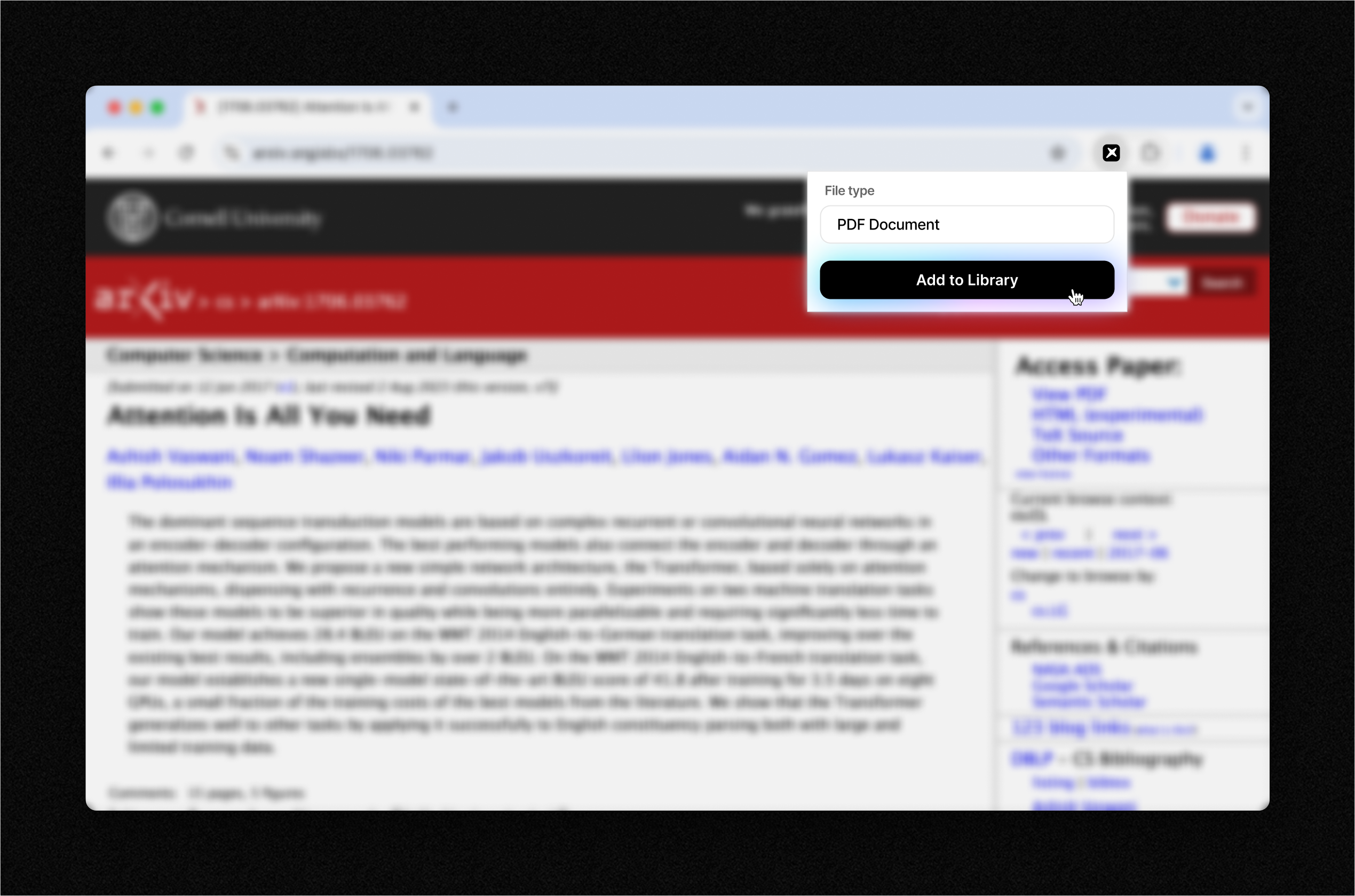 **Getting Started:**
1. Install the Anara Web Clipper extension from the [Chrome Web Store](https://anr.to/chrome-docs).
2. Pin it to your browser toolbar for quick access.
3. Whenever you find a useful PDF, webpage, or YouTube video, click the Anara icon and select "Add to Library."
Ideal for researchers, academics, and knowledge professionals who want an easy way to collect and organize important online content seamlessly.
Start simplifying your research workflow today with Anara.
# Sharing chats
Source: https://docs.anara.com/collaboration/chat-sharing
Share your Anara chats with others through shareable links
## Overview
Anara allows you to share your chat conversations with others through shareable links. This feature is perfect for collaborating with colleagues, sharing research findings, or documenting important discussions.
## Creating a share link
To create a share link for your chat:
1. Click the **"Share"** button at the top of any chat
2. Click **"Publish"** to generate a share link
3. The link is automatically copied to your clipboard
**Getting Started:**
1. Install the Anara Web Clipper extension from the [Chrome Web Store](https://anr.to/chrome-docs).
2. Pin it to your browser toolbar for quick access.
3. Whenever you find a useful PDF, webpage, or YouTube video, click the Anara icon and select "Add to Library."
Ideal for researchers, academics, and knowledge professionals who want an easy way to collect and organize important online content seamlessly.
Start simplifying your research workflow today with Anara.
# Sharing chats
Source: https://docs.anara.com/collaboration/chat-sharing
Share your Anara chats with others through shareable links
## Overview
Anara allows you to share your chat conversations with others through shareable links. This feature is perfect for collaborating with colleagues, sharing research findings, or documenting important discussions.
## Creating a share link
To create a share link for your chat:
1. Click the **"Share"** button at the top of any chat
2. Click **"Publish"** to generate a share link
3. The link is automatically copied to your clipboard